

Aggregate organizational data with AI agents
Unify company knowledge with Slack-native AI agents using Tiger Eon and Tiger Cloud.

Your business already has the answers in Slack threads, GitHub pull requests, Linear tasks, your own docs, Salesforce service tickets, anywhere you store data. However, those answers are scattered, hard to find, and often forgotten. Tiger Eon automatically integrates Tiger Agents for Work with your organizational data so you can let AI Assistants analyze your company data and give you the answers you need. For example:
- What did we ship last week?
- What’s blocking the release?
- Summarize the latest GitHub pull requests.
Eon responds instantly, pulling from the tools you already use. No new UI, no new workflow, just answers in Slack.
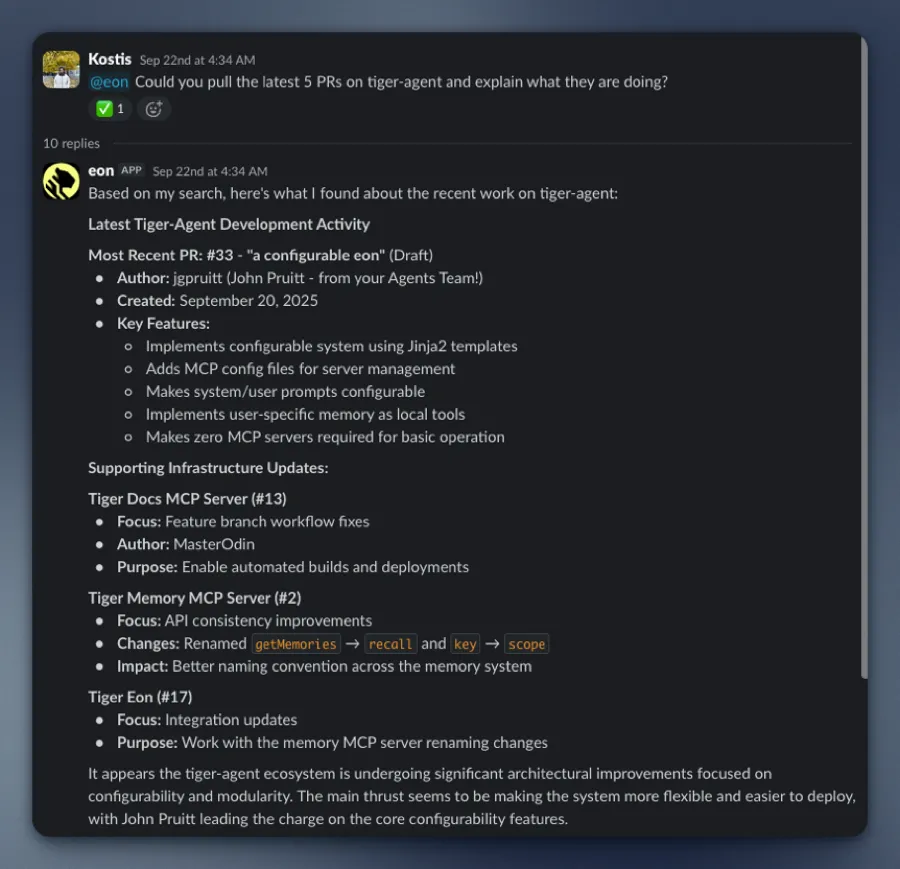
By the end of this tutorial, you’ll be able to:
- Install and run Eon with Docker and Tiger CLI
- Connect Slack, Anthropic, and optionally GitHub and Linear to Eon
- Ask questions in Slack and get answers from your organizational data stored in a Tiger Cloud service
(Optional) You can also watch a walkthrough on the Tiger Data YouTube channel (insert video link when available).
Background
Section titled “Background”Tiger Eon:
- Unlocks hidden value: your data in Slack, GitHub, and Linear already contains the insights you need. Eon makes them accessible.
- Enables faster decisions: no need to search or ask around, you get answers in seconds.
- Is easy to use: Eon runs a Tiger Agent and MCP servers statelessly in lightweight Docker containers.
- Integrates seamlessly with Tiger Cloud: Eon uses a Tiger Cloud service so you securely and reliably store your company data. Prefer to self-host? Use a PostgreSQL instance with TimescaleDB.
Tiger Eon’s real-time ingestion system connects to Slack and captures everything: every message, reaction, edit, and channel update. It can also process historical Slack exports. Eon had instant access to years of institutional knowledge from the very beginning.
All of this data is stored in your Tiger Cloud service as time-series data: conversations are events unfolding over time, and Tiger Cloud is purpose-built for precisely this. Your data is optimized by:
- Automatically partitioning the data into 7-day chunks for efficient queries
- Compressing the data after 45 days to save space
- Segmenting by channel for faster retrieval
When someone asks Eon a question, it uses simple SQL to instantly retrieve the full thread context, related conversations, and historical decisions. No rate limits. No API quotas. Just direct access to your data.
What is the tech stack we’re working with?
Section titled “What is the tech stack we’re working with?”Tiger Eon: A production-ready system that runs AI agents and MCP servers to connect your organizational data (Slack, GitHub, Linear) with a Tiger Cloud service. It uses Tiger CLI and Tiger Agents for Work so you can ask questions in Slack and get answers from your company data in seconds.
- Tiger Cloud stores the ingested data as time-series and powers the agents.
- Docker Compose runs the local components (ingest app, listener app, MCP servers) in lightweight containers.
Prerequisites for this tutorial
To follow the procedure on this page you need to:
-
Create a Tiger Cloud account.
This procedure also works for self-hosted TimescaleDB.
- Install Docker on your developer device
- Install Tiger CLI
- Have rights to create an Anthropic API key
- Optionally:
- Have rights to create a GitHub token
- Have rights to create a Logfire token
- Have rights to create a Linear token
You will create two Slack apps (ingest and listener) during setup. Have access to create apps in your Slack workspace (e.g. at https://api.slack.com/apps/).
Interactive setup
Section titled “Interactive setup”Tiger Eon is a production-ready repository running Tiger CLI and Tiger Agents for Work that creates and runs the following components for you:
- An ingest Slack app that consumes all messages and reactions from public channels in your Slack workspace
- A Tiger Agent that analyzes your company data for you
- A Tiger Cloud service instance that stores data from the Slack apps
- MCP servers that connect data sources to Eon
- A listener Slack app that passes questions to the Tiger Agent when you @tag it in a public channel, and returns the AI analysis on your data
All local components are run in lightweight Docker containers via Docker Compose.
- Install Tiger Eon to manage and run your AI-powered Slack bots
In a local folder, run the following command from the terminal:
Terminal window git clone git@github.com:timescale/tiger-eon.git - Start the Eon setup
Terminal window cd tiger-eon./setup-tiger-eon.shYou see a summary of the setup procedure. Type
yand pressEnter. - Create the Tiger Cloud service to use with Eon
You see
Do you want to use a hosted Tiger Cloud Database? [y/N]:. PressYto create a free Tiger Cloud service.Eon opens the Tiger Cloud authentication page in your browser. Click
Authorize. Eon creates a Tiger Cloud service called tiger-eon and stores the credentials in your local keychain.If you press
N, the Eon setup creates and runs TimescaleDB in a local Docker container. - Create the ingest Slack app
-
In the terminal, name your ingest Slack app:
- Eon proposes to create an ingest app called
tiger-slack-ingest, pressEnter. - Do the same for the App description.
Eon opens
Your Appsin https://api.slack.com/apps/. - Eon proposes to create an ingest app called
-
Start configuring your ingest app in Slack. In the Slack
Your Appspage:- Click
Create New App, clickFrom an manifest, then select a workspace. - Click
Next. Slack opensCreate app from manifest.
- Click
-
Add the Slack app manifest:
- In terminal press
Enter. The setup prints the Slack app manifest to terminal and adds it to your clipboard. - In the Slack
Create app from manifestwindow, paste the manifest. - Click
Next, then clickCreate.
- In terminal press
-
Configure an app-level token:
- In your app settings, go to
Basic Information. - Scroll to
App-Level Tokens. - Click
Generate Token and Scopes. - Add a
Token Name, then clickAdd Scopeaddconnections:write, then clickGenerate. - Copy the
xapp-*token and clickDone. - In the terminal, paste the token, then press
Enter.
- In your app settings, go to
-
Configure a bot user OAuth token:
- In your app settings, under
Features, clickApp Home. - Scroll down, then enable
Allow users to send Slash commands and messages from the messages tab. - In your app settings, under
Settings, clickInstall App. - Click
Install to <workspace name>, then clickAllow. - Copy the
xoxb-Bot User OAuth Token locally. - In the terminal, paste the token, then press
Enter.
- In your app settings, under
-
- Create the Eon Slack app
Follow the same procedure as you did for the ingest Slack app.
- Integrate Eon with Anthropic
The Eon setup opens https://console.anthropic.com/settings/keys. Create a Claude Code key, then paste it in the terminal.
- Integrate Eon with Logfire
If you would like to integrate logfire with Eon, paste your token and press
Enter. If not, pressEnter. - Integrate Eon with GitHub
The Eon setup asks if you would like to
Enable github MCP server?". For {C.EON_SHORT} to answer questions about the activity in your Github organization. Pressyto integrate with GitHub. - Integrate Eon with Linear
The Eon setup asks if you would like to
Enable linear MCP server? [y/N]:. Pressyto integrate with Linear. - Give Eon access to private repositories
- The setup asks if you would like to include access to private repositories. Press
y. - Follow the GitHub token creation process.
- In the Eon setup add your organization name, then paste the GitHub token.
The setup sets up a new Tiger Cloud service for you called
tiger-eon, then starts Eon in Docker.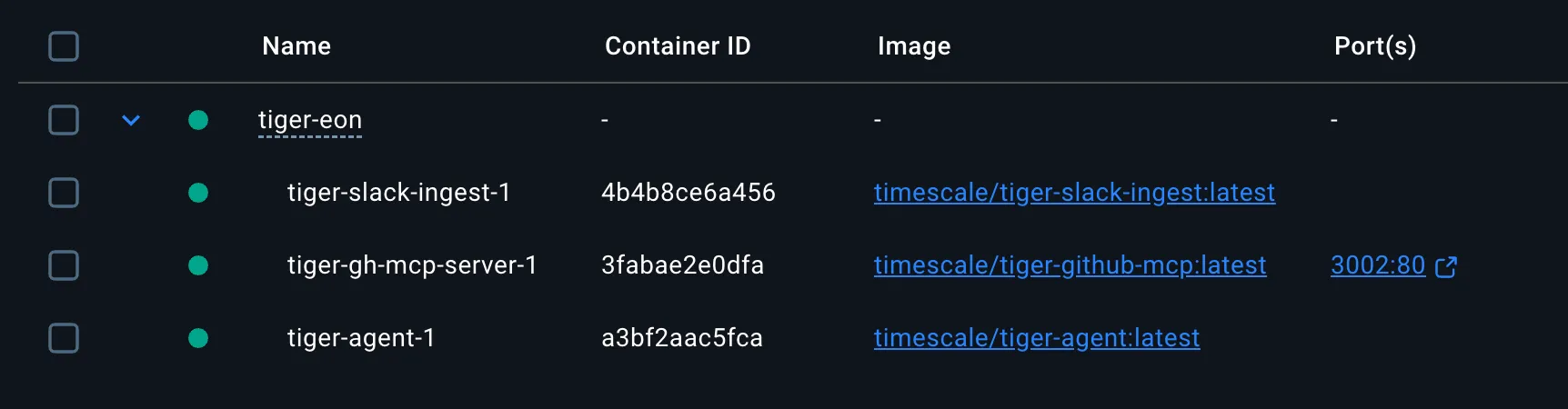
- The setup asks if you would like to include access to private repositories. Press
You have created:
- The Eon ingest and chat apps in Slack
- A private MCP server connecting Eon to your data in GitHub
- A Tiger Cloud service that securely stores the data used by Eon
Integrate Eon in your Slack workspace
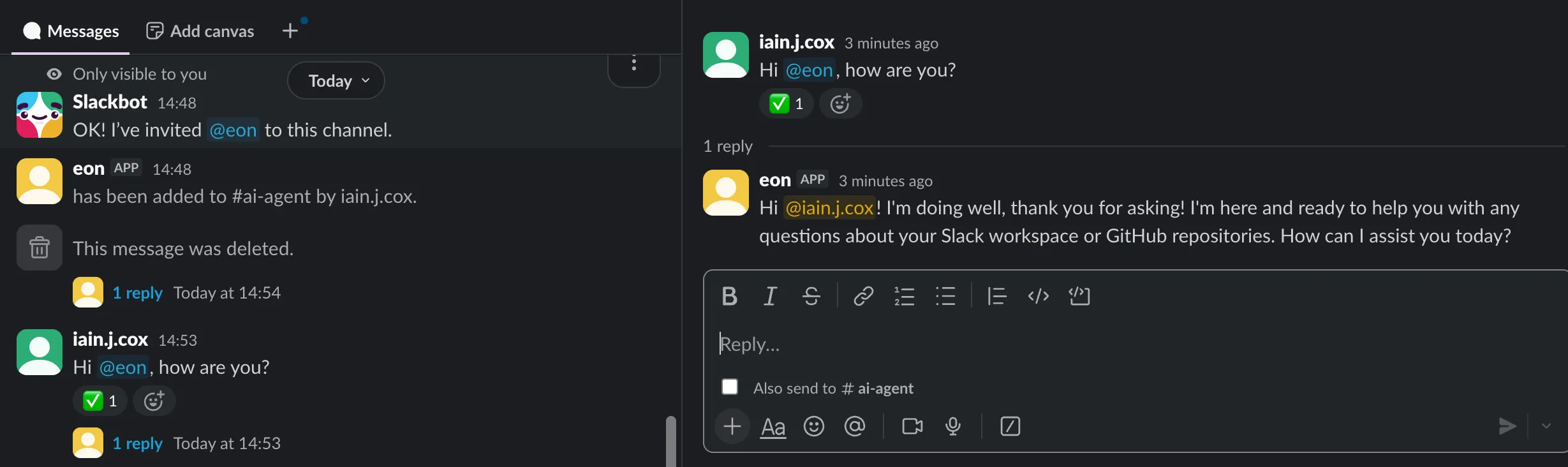
Section titled “Integrate Eon in your Slack workspace”To enable your AI Assistant to analyze your data for you when you ask a question, open a public channel, invite @eon to join, then ask a question:
Summary
Section titled “Summary”In this tutorial, you learned how to:
- Install Eon and run the interactive setup with Tiger CLI
- Create a Tiger Cloud service and two Slack apps (ingest and listener)
- Connect Anthropic, and optionally Logfire, GitHub, and Linear to Eon
- Invite Eon to a Slack channel and ask questions about your organizational data