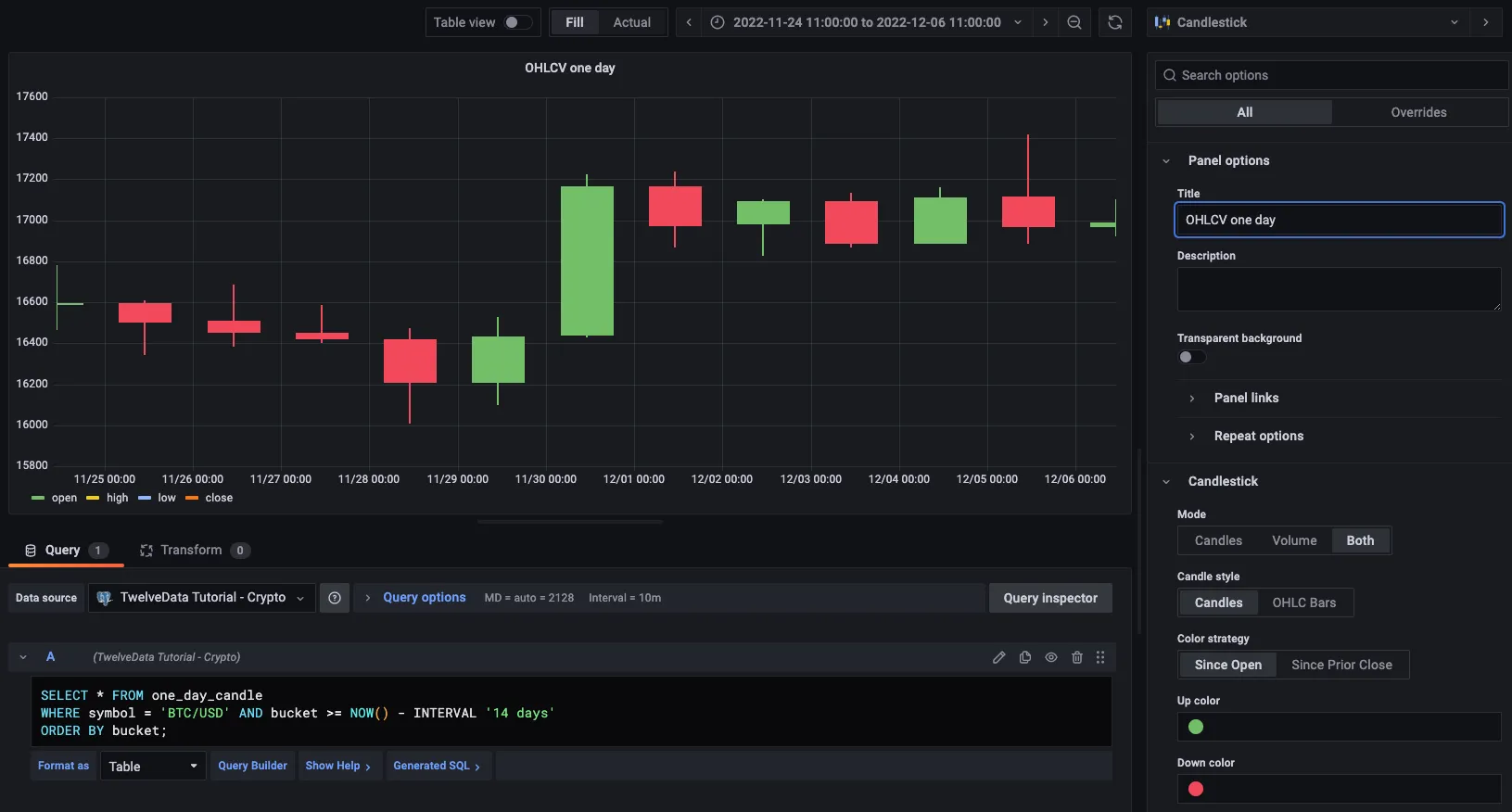
Analyze financial tick data
Store financial tick data and create candlestick views for real-time analysis of price changes
The financial industry is extremely data-heavy and relies on real-time and historical data for decision-making, risk assessment, fraud detection, and market analysis. Tiger Data simplifies management of these large volumes of data, while also providing you with meaningful analytical insights and optimizing storage costs.
To analyze financial data, you can chart the open, high, low, close, and volume (OHLCV) information for a financial asset. Using this data, you can create candlestick charts that make it easier to analyze the price changes of financial assets over time. You can use candlestick charts to examine trends in stock, cryptocurrency, or NFT prices.
In this tutorial, you use real raw financial data provided by Twelve Data, create an aggregated candlestick view, query the aggregated data, and visualize the data in Grafana.
This tutorial covers:
- Ingest data into a service: load data from Twelve Data into your TimescaleDB database.
- Query your dataset: create candlestick views, query the aggregated data, and visualize the data in Grafana.
Prerequisites for this tutorial
To follow the procedure on this page you need to:
-
Create a target Tiger Cloud service.
This procedure also works for self-hosted TimescaleDB.
- Install and run self-managed Grafana, or sign up for Grafana Cloud.
This tutorial uses a dataset that contains second-by-second trade data for
the most-traded crypto-assets. You optimize this time-series data in a hypertable called crypto_ticks.
You also create a separate table of asset symbols in a regular PostgreSQL table named crypto_assets.
OHLCV data and candlestick charts
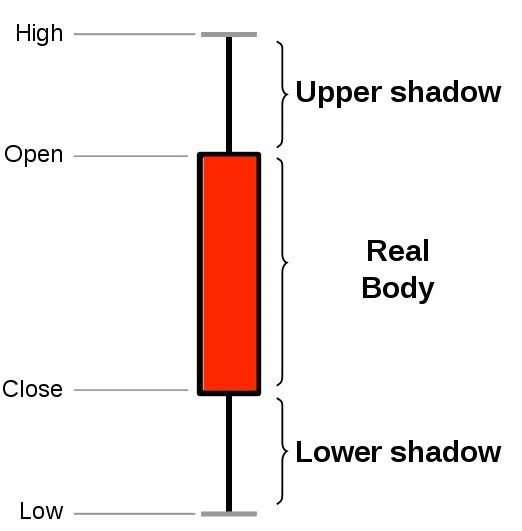
Section titled “OHLCV data and candlestick charts”The financial sector regularly uses candlestick charts to visualize the price change of an asset. Each candlestick represents a time period, such as one minute or one hour, and shows how the asset’s price changed during that time.
Candlestick charts are generated from the open, high, low, close, and volume data for each financial asset during the time period. This is often abbreviated as OHLCV:
- Open: opening price
- High: highest price
- Low: lowest price
- Close: closing price
- Volume: volume of transactions
TimescaleDB is well suited to storing and analyzing financial candlestick data, and many Tiger Data community members use it for exactly this purpose. Check out these stories from some Tiger Data community members:
- How Trading Strategy built a data stack for crypto quant trading
- How Messari uses data to open the cryptoeconomy to everyone
- How I power a (successful) crypto trading bot with TimescaleDB
Optimize time-series data in a hypertable
Hypertables are PostgreSQL tables in TimescaleDB that automatically partition your time-series data by time. Time-series data represents the way a system, process, or behavior changes over time. Hypertables enable TimescaleDB to work efficiently with time-series data. Each hypertable is made up of child tables called chunks. Each chunk is assigned a range of time, and only contains data from that range. When you run a query, TimescaleDB identifies the correct chunk and runs the query on it, instead of going through the entire table.
Hypercore is the hybrid row-columnar storage engine in TimescaleDB used by hypertables. Traditional databases force a trade-off between fast inserts (row-based storage) and efficient analytics (columnar storage). Hypercore eliminates this trade-off, allowing real-time analytics without sacrificing transactional capabilities.
Hypercore dynamically stores data in the most efficient format for its lifecycle:
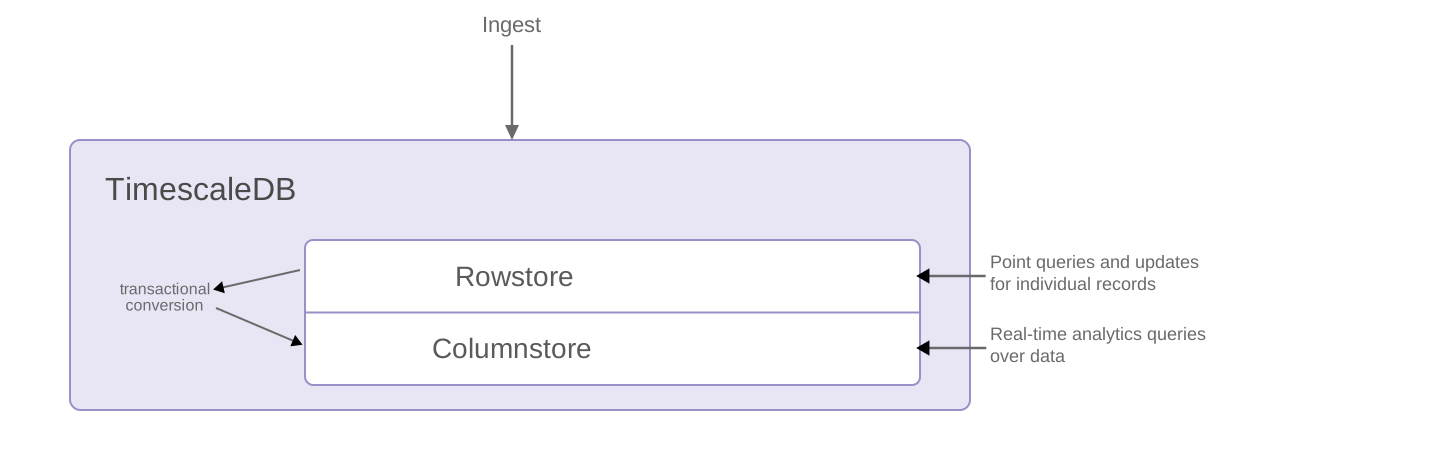
- Row-based storage for recent data: the most recent chunk (and possibly more) is always stored in the rowstore, ensuring fast inserts, updates, and low-latency single record queries. Additionally, row-based storage is used as a writethrough for inserts and updates to columnar storage.
- Columnar storage for analytical performance: chunks are automatically compressed into the columnstore, optimizing storage efficiency and accelerating analytical queries.
Unlike traditional columnar databases, hypercore allows data to be inserted or modified at any stage, making it a flexible solution for both high-ingest transactional workloads and real-time analytics, within a single database.
Because TimescaleDB is 100% PostgreSQL, you can use all the standard PostgreSQL tables, indexes, stored procedures, and other objects alongside your hypertables. This makes creating and working with hypertables similar to standard PostgreSQL.
- Connect to your Tiger Cloud service
In Tiger Console open an SQL editor. You can also connect to your service using psql.
- Create a hypertable to store the real-time cryptocurrency data
Create a hypertable for your time-series data using CREATE TABLE. For efficient queries on data in the columnstore, remember to
segmentbythe column you will use most often to filter your data:CREATE TABLE crypto_ticks ("time" TIMESTAMPTZ,symbol TEXT,price DOUBLE PRECISION,day_volume NUMERIC) WITH (tsdb.hypertable,tsdb.segmentby='symbol',tsdb.orderby='time DESC');When you create a hypertable using CREATE TABLE … WITH …, the default partitioning column is automatically the first column with a timestamp data type. Also, TimescaleDB creates a columnstore policy that automatically converts your data to the columnstore, after an interval equal to the value of the chunk_interval, defined through
afterin the policy. This columnar format enables fast scanning and aggregation, optimizing performance for analytical workloads while also saving significant storage space. In the columnstore conversion, hypertable chunks are compressed by up to 98%, and organized for efficient, large-scale queries.You can customize this policy later using alter_job. However, to change
afterorcreated_before, the compression settings, or the hypertable the policy is acting on, you must remove the columnstore policy and add a new one.You can also manually convert chunks in a hypertable to the columnstore.
Create a standard PostgreSQL table for relational data
When you have relational data that enhances your time-series data, store that data in standard PostgreSQL relational tables.
- Add a table to store the asset symbol and name in a relational tableCREATE TABLE crypto_assets (symbol TEXT UNIQUE,"name" TEXT);
You now have two tables within your Tiger Cloud service. A hypertable named crypto_ticks, and a normal
PostgreSQL table named crypto_assets.
Load financial data
This tutorial uses real-time cryptocurrency data, also known as tick data, from Twelve Data. To ingest data into the tables that you created, you need to download the dataset, then upload the data to your Tiger Cloud service.
- Download and unzip crypto_sample.zip
Unzip crypto_sample.zip to a
<local folder>.This test dataset contains second-by-second trade data for the most-traded crypto-assets and a regular table of asset symbols and company names.
To import up to 100GB of data directly from your current PostgreSQL-based database, migrate with downtime using native PostgreSQL tooling. To seamlessly import 100GB-10TB+ of data, use the live migration tooling supplied by Tiger Data. To add data from non-PostgreSQL data sources, see Import and ingest data.
- In Terminal, navigate to
<local folder>and connect to your service.Terminal window psql -d "postgres://<username>:<password>@<host>:<port>/<database-name>"The connection information for a service is available in the file you downloaded when you created it.
- Use the COPY command to transfer data into your Tiger Cloud service
At the
psqlprompt, if the.csvfiles aren’t in your current directory, specify the file paths in these commands:\COPY crypto_ticks FROM 'tutorial_sample_tick.csv' CSV HEADER;\COPY crypto_assets FROM 'tutorial_sample_assets.csv' CSV HEADER;Because there are millions of rows of data, the
COPYprocess could take a few minutes depending on your internet connection and local client resources.
Query the data
Section titled “Query the data”Turning raw, real-time tick data into aggregated candlestick views is a common task for users who work with financial data. TimescaleDB includes hyperfunctions that you can use to store and query your financial data more easily. Hyperfunctions are SQL functions within TimescaleDB that make it easier to manipulate and analyze time-series data in PostgreSQL with fewer lines of code.
There are three hyperfunctions that are essential for calculating candlestick
values: time_bucket(), FIRST(), and LAST().
The time_bucket() hyperfunction helps you aggregate records into buckets of
arbitrary time intervals based on the timestamp value. FIRST() and LAST()
help you calculate the opening and closing prices. To calculate highest and
lowest prices, you can use the standard PostgreSQL aggregate functions MIN and
MAX.
In TimescaleDB, the most efficient way to create candlestick views is to use continuous aggregates. In this tutorial, you create a continuous aggregate for a candlestick time bucket, and then query the aggregate with different refresh policies. Finally, you can use Grafana to visualize your data as a candlestick chart.
Create a continuous aggregate
Section titled “Create a continuous aggregate”To look at OHLCV values, the most effective way is to create a continuous aggregate. In this tutorial, you create a continuous aggregate to aggregate data for each day. You then set the aggregate to refresh every day, and to aggregate the last two days’ worth of data.
- Connect to the Tiger Cloud service
Connect to the Tiger Cloud service that contains the Twelve Data cryptocurrency dataset.
- Create the continuous aggregate
At the psql prompt, create the continuous aggregate to aggregate data every day:
CREATE MATERIALIZED VIEW one_day_candleWITH (timescaledb.continuous) ASSELECTtime_bucket('1 day', time) AS bucket,symbol,FIRST(price, time) AS "open",MAX(price) AS high,MIN(price) AS low,LAST(price, time) AS "close",LAST(day_volume, time) AS day_volumeFROM crypto_ticksGROUP BY bucket, symbol;When you create the continuous aggregate, it refreshes by default.
- Set a refresh policy
Set a refresh policy to update the continuous aggregate every day, if there is new data available in the hypertable for the last two days:
SELECT add_continuous_aggregate_policy('one_day_candle',start_offset => INTERVAL '3 days',end_offset => INTERVAL '1 day',schedule_interval => INTERVAL '1 day');
Query the continuous aggregate
Section titled “Query the continuous aggregate”When you have your continuous aggregate set up, you can query it to get the OHLCV values.
- Connect to the Tiger Cloud service
Connect to the Tiger Cloud service that contains the Twelve Data cryptocurrency dataset.
- Query Bitcoin OHLCV data
At the psql prompt, use this query to select all Bitcoin OHLCV data for the past 14 days, by time bucket:
SELECT * FROM one_day_candleWHERE symbol = 'BTC/USD' AND bucket >= NOW() - INTERVAL '14 days'ORDER BY bucket;The result of the query looks like this:
bucket | symbol | open | high | low | close | day_volume------------------------+---------+---------+---------+---------+---------+------------2022-11-24 00:00:00+00 | BTC/USD | 16587 | 16781.2 | 16463.4 | 16597.4 | 218032022-11-25 00:00:00+00 | BTC/USD | 16597.4 | 16610.1 | 16344.4 | 16503.1 | 207882022-11-26 00:00:00+00 | BTC/USD | 16507.9 | 16685.5 | 16384.5 | 16450.6 | 12300
Connect Grafana to Tiger Cloud
To visualize the results of your queries, enable Grafana to read the data in your service:
- Log in to Grafana
In your browser, log in to either:
- Self-hosted Grafana: at
http://localhost:3000/. The default credentials areadmin,admin. - Grafana Cloud: use the URL and credentials you set when you created your account.
- Self-hosted Grafana: at
- Add your service as a data source
-
Open
Connections>Data sources, then clickAdd new data source. -
Select
PostgreSQLfrom the list. -
Configure the connection:
Host URL,Database name,Username, andPassword, configure using your connection details.Host URLis in the format<host>:<port>.TLS/SSL Mode: selectrequire.{C.PG} options: enableTimescaleDB.- Leave the default setting for all other fields.
-
Click
Save & test.Grafana checks that your details are set correctly.
-
Graph OHLCV data
When you have extracted the raw OHLCV data, you can use it to graph the result in a candlestick chart, using Grafana.
- Create a new dashboard
In Grafana, from the
Dashboardspage, clickNewand selectNew dashboard. - Add a Candlestick visualization
Click
Add visualization, then select the data source that connects to your Tiger Cloud service and theCandlestickvisualization type in the top right. - Paste the OHLCV query
In the
Queriessection, selectCodeand paste the query you used to get the OHLCV values:SELECT * FROM one_day_candleWHERE symbol = 'BTC/USD' AND bucket >= NOW() - INTERVAL '14 days'ORDER BY bucket; - Apply and save your graph
Adjust elements of the table as required, and click
Applyto save your graph to the dashboard.