

Analyze Bitcoin blockchain
Query and analyze blockchain transactions to discover insights about fees, mining revenue, and market trends
The financial industry is extremely data-heavy and relies on real-time and historical data for decision-making, risk assessment, fraud detection, and market analysis. Tiger Data simplifies management of these large volumes of data, while also providing you with meaningful analytical insights and optimizing storage costs.
In this tutorial, you use Tiger Cloud to ingest, store, and analyze transactions on the Bitcoin blockchain.
Blockchains are, at their essence, a distributed database. The transactions in a blockchain are an example of time-series data. You can use TimescaleDB to query transactions on a blockchain, in exactly the same way as you might query time-series transactions in any other database.
This tutorial uses a sample Bitcoin dataset and covers:
- Ingest data: set up and connect to a Tiger Cloud service, create tables and hypertables, and ingest data.
- Query the data: obtain information about recent transactions and blocks using basic SQL queries.
- Analyze the data: create continuous aggregates and use TimescaleDB hyperfunctions to discover insights about transaction fees, mining revenue, and market correlations.
- Visualize results: graph your analytical queries in Grafana dashboards.
Prerequisites for this tutorial
To follow the procedure on this page you need to:
-
Create a target Tiger Cloud service.
This procedure also works for self-hosted TimescaleDB.
- Install and run self-managed Grafana, or sign up for Grafana Cloud.
This tutorial uses a dataset that contains Bitcoin blockchain data for
the past five days, in a hypertable named transactions.
Optimize time-series data using hypertables
Hypertables are PostgreSQL tables in TimescaleDB that automatically partition your time-series data by time. Time-series data represents the way a system, process, or behavior changes over time. Hypertables enable TimescaleDB to work efficiently with time-series data. Each hypertable is made up of child tables called chunks. Each chunk is assigned a range of time, and only contains data from that range. When you run a query, TimescaleDB identifies the correct chunk and runs the query on it, instead of going through the entire table.
Hypercore is the hybrid row-columnar storage engine in TimescaleDB used by hypertables. Traditional databases force a trade-off between fast inserts (row-based storage) and efficient analytics (columnar storage). Hypercore eliminates this trade-off, allowing real-time analytics without sacrificing transactional capabilities.
Hypercore dynamically stores data in the most efficient format for its lifecycle:
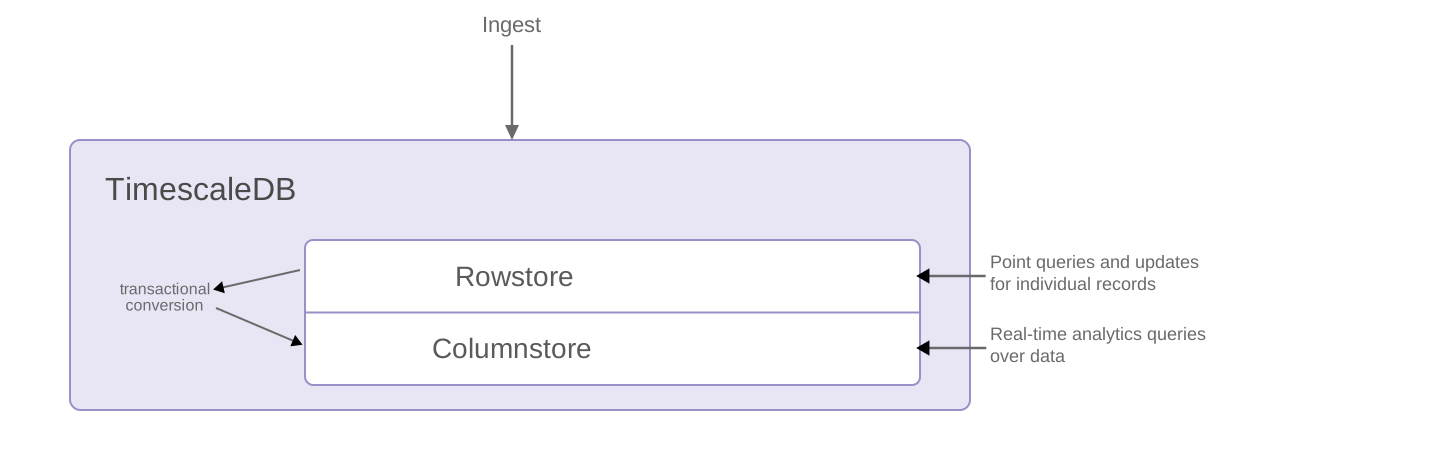
- Row-based storage for recent data: the most recent chunk (and possibly more) is always stored in the rowstore, ensuring fast inserts, updates, and low-latency single record queries. Additionally, row-based storage is used as a writethrough for inserts and updates to columnar storage.
- Columnar storage for analytical performance: chunks are automatically compressed into the columnstore, optimizing storage efficiency and accelerating analytical queries.
Unlike traditional columnar databases, hypercore allows data to be inserted or modified at any stage, making it a flexible solution for both high-ingest transactional workloads and real-time analytics, within a single database.
Because TimescaleDB is 100% PostgreSQL, you can use all the standard PostgreSQL tables, indexes, stored procedures, and other objects alongside your hypertables. This makes creating and working with hypertables similar to standard PostgreSQL.
- Connect to your Tiger Cloud service
In Tiger Console open an SQL editor. The in-Console editors display the query speed. You can also connect to your service using psql.
- Create a hypertable for your time-series data using CREATE TABLE.
For efficient queries on data in the columnstore, remember to
segmentbythe column you will use most often to filter your data:CREATE TABLE transactions (time TIMESTAMPTZ NOT NULL,block_id INT,hash TEXT,size INT,weight INT,is_coinbase BOOLEAN,output_total BIGINT,output_total_usd DOUBLE PRECISION,fee BIGINT,fee_usd DOUBLE PRECISION,details JSONB) WITH (tsdb.hypertable,tsdb.segmentby='block_id',tsdb.orderby='time DESC');When you create a hypertable using CREATE TABLE … WITH …, the default partitioning column is automatically the first column with a timestamp data type. Also, TimescaleDB creates a columnstore policy that automatically converts your data to the columnstore, after an interval equal to the value of the chunk_interval, defined through
afterin the policy. This columnar format enables fast scanning and aggregation, optimizing performance for analytical workloads while also saving significant storage space. In the columnstore conversion, hypertable chunks are compressed by up to 98%, and organized for efficient, large-scale queries.You can customize this policy later using alter_job. However, to change
afterorcreated_before, the compression settings, or the hypertable the policy is acting on, you must remove the columnstore policy and add a new one.You can also manually convert chunks in a hypertable to the columnstore.
- Create an index on the
hashcolumn to make queries for individual transactions fasterCREATE INDEX hash_idx ON public.transactions USING HASH (hash); - Create an index on the
block_idcolumn to make block-level queries faster:When you create a hypertable, it is partitioned on the time column. TimescaleDB automatically creates an index on the time column. However, you’ll often filter your time-series data on other columns as well. You use indexes to improve query performance.
CREATE INDEX block_idx ON public.transactions (block_id); - Create a unique index on the
timeandhashcolumns to prevent duplicate recordsCREATE UNIQUE INDEX time_hash_idx ON public.transactions (time, hash);
Load financial data
The dataset contains around 1.5 million Bitcoin transactions, the trades for five days. It includes information about each transaction, along with the value in satoshi. It also states if a trade is a coinbase transaction, and the reward a coin miner receives for mining the coin.
To ingest data into the tables that you created, you need to download the dataset and copy the data to your database.
- Download the
bitcoin_sample.zipfileThe file contains a
.csvfile with Bitcoin transactions for the past five days. Download: - Unzip the
.csvfilesTerminal window unzip bitcoin_sample.zip - Navigate to the unzipped folder and connect to your service
In Terminal, navigate to the folder where you unzipped the Bitcoin transactions, then connect to your service using psql.
- Use the COPY command to transfer data into your service
If the
.csvfiles aren’t in your current directory, specify the file paths in these commands:\COPY transactions FROM 'tutorial_bitcoin_sample.csv' CSV HEADER;Because there is over a million rows of data, the
COPYprocess could take a few minutes depending on your internet connection and local client resources.
Connect Grafana to Tiger Cloud
To visualize the results of your queries, enable Grafana to read the data in your service:
- Log in to Grafana
In your browser, log in to either:
- Self-hosted Grafana: at
http://localhost:3000/. The default credentials areadmin,admin. - Grafana Cloud: use the URL and credentials you set when you created your account.
- Self-hosted Grafana: at
- Add your service as a data source
-
Open
Connections>Data sources, then clickAdd new data source. -
Select
PostgreSQLfrom the list. -
Configure the connection:
Host URL,Database name,Username, andPassword, configure using your connection details.Host URLis in the format<host>:<port>.TLS/SSL Mode: selectrequire.{C.PG} options: enableTimescaleDB.- Leave the default setting for all other fields.
-
Click
Save & test.Grafana checks that your details are set correctly.
-
Query the data
Section titled “Query the data”When you have your dataset loaded, you can start constructing some queries to discover what your data tells you. In this section, you learn how to write queries that answer these questions:
- What are the five most recent coinbase transactions?
- What are the five most recent transactions?
- What are the five most recent blocks?
What are the five most recent coinbase transactions?
Section titled “What are the five most recent coinbase transactions?”Coinbase transactions are the first transaction in a block, and
they include the reward a coin miner receives for mining the coin. To find the
most recent coinbase transactions, you can query for transactions where
is_coinbase is TRUE. You’ll notice that the fee_usd is $0 for each coinbase
transaction because the miner receives the block reward directly without paying
a transaction fee.
- Connect to the Tiger Cloud service that contains the Bitcoin dataset
- Select the five most recent coinbase transactions
At the psql prompt, use this query:
SELECT time, hash, block_id, fee_usd FROM transactionsWHERE is_coinbase IS TRUEORDER BY time DESCLIMIT 5; - Check the results
The data you get back looks a bit like this:
time | hash | block_id | fee_usd------------------------+------------------------------------------------------------------+----------+---------2023-06-12 23:54:18+00 | 22e4610bc12d482bc49b7a1c5b27ad18df1a6f34256c16ee7e499b511e02d71e | 794111 | 02023-06-12 23:53:08+00 | dde958bb96a302fd956ced32d7b98dd9860ff82d569163968ecfe29de457fedb | 794110 | 02023-06-12 23:44:50+00 | 75ac1fa7febe1233ee57ca11180124c5ceb61b230cdbcbcba99aecc6a3e2a868 | 794109 | 02023-06-12 23:44:14+00 | 1e941d66b92bf0384514ecb83231854246a94c86ff26270fbdd9bc396dbcdb7b | 794108 | 02023-06-12 23:41:08+00 | 60ae50447254d5f4561e1c297ee8171bb999b6310d519a0d228786b36c9ffacf | 794107 | 0(5 rows)
What are the five most recent transactions?
Section titled “What are the five most recent transactions?”This dataset contains Bitcoin transactions for the last five days. To find out
the most recent transactions in the dataset, you can use a SELECT statement.
In this case, you want to find transactions that are not coinbase transactions,
sort them by time in descending order, and take the top five results. You also
want to see the block ID, and the value of the transaction in US Dollars.
- Connect to the Tiger Cloud service that contains the Bitcoin dataset
- Select the five most recent non-coinbase transactions
At the psql prompt, use this query:
SELECT time, hash, block_id, fee_usd FROM transactionsWHERE is_coinbase IS NOT TRUEORDER BY time DESCLIMIT 5; - Check the results
The data you get back looks a bit like this:
time | hash | block_id | fee_usd------------------------+------------------------------------------------------------------+----------+---------2023-06-12 23:54:18+00 | 6f709d52e9aa7b2569a7f8c40e7686026ede6190d0532220a73fdac09deff973 | 794111 | 7.6142023-06-12 23:54:18+00 | ece5429f4a76b1603aecbee31bf3d05f74142a260e4023316250849fe49115ae | 794111 | 9.3062023-06-12 23:54:18+00 | 54a196398880a7e2e38312d4285fa66b9c7129f7d14dc68c715d783322544942 | 794111 | 13.19282023-06-12 23:54:18+00 | 3e83e68735af556d9385427183e8160516fafe2f30f30405711c4d64bf0778a6 | 794111 | 3.54162023-06-12 23:54:18+00 | ca20d073b1082d7700b3706fe2c20bc488d2fc4a9bb006eb4449efe3c3fc6b2b | 794111 | 8.6842(5 rows)
What are the five most recent blocks?
Section titled “What are the five most recent blocks?”In this procedure, you use a more complicated query to return the five most recent blocks, and show some additional information about each, including the block weight, number of transactions in each block, and the total block value in US Dollars.
- Connect to the Tiger Cloud service that contains the Bitcoin dataset
- Select the five most recent blocks
At the psql prompt, use this query:
WITH recent_blocks AS (SELECT block_id FROM transactionsWHERE is_coinbase IS TRUEORDER BY time DESCLIMIT 5)SELECTt.block_id, count(*) AS transaction_count,SUM(weight) AS block_weight,SUM(output_total_usd) AS block_value_usdFROM transactions tINNER JOIN recent_blocks b ON b.block_id = t.block_idWHERE is_coinbase IS NOT TRUEGROUP BY t.block_id; - Check the results
The data you get back looks a bit like this:
block_id | transaction_count | block_weight | block_value_usd----------+-------------------+--------------+--------------------794108 | 5625 | 3991408 | 65222453.36381342794111 | 5039 | 3991748 | 5966031.481099684794109 | 6325 | 3991923 | 5406755.801599815794110 | 2525 | 3995553 | 177249139.6457974794107 | 4464 | 3991838 | 107348519.36559173(5 rows)
Analyze the data
Section titled “Analyze the data”In this section, you use TimescaleDB hyperfunctions to construct analytical queries that are not possible in standard PostgreSQL. You create continuous aggregates to simplify and speed up your queries, then use them to answer these questions:
- Is there any connection between the number of transactions and the transaction fees?
- Does the transaction volume affect the BTC-USD rate?
- Do more transactions in a block mean the block is more expensive to mine?
- What percentage of the average miner’s revenue comes from fees compared to block rewards?
- How does block weight affect miner fees?
- What’s the average miner revenue per block?
Create continuous aggregates
Section titled “Create continuous aggregates”You can use continuous aggregates to simplify and speed up your
queries. For this analysis, you need three continuous aggregates focusing on
three aspects of the dataset: Bitcoin transactions, blocks, and coinbase
transactions. In each continuous aggregate definition, the time_bucket()
function controls how large the time buckets are. The examples all use 1-hour
time buckets.
- Connect to the Tiger Cloud service that contains the Bitcoin dataset
- Create a continuous aggregate called one_hour_transactions
This view holds aggregated data about each hour of transactions:
CREATE MATERIALIZED VIEW one_hour_transactionsWITH (timescaledb.continuous) ASSELECT time_bucket('1 hour', time) AS bucket,count(*) AS tx_count,sum(fee) AS total_fee_sat,sum(fee_usd) AS total_fee_usd,stats_agg(fee) AS stats_fee_sat,avg(size) AS avg_tx_size,avg(weight) AS avg_tx_weight,count(CASEWHEN (fee > output_total) THEN hashELSE NULLEND) AS high_fee_countFROM transactionsWHERE (is_coinbase IS NOT TRUE)GROUP BY bucket; - Add a refresh policy to keep the continuous aggregate up-to-dateSELECT add_continuous_aggregate_policy('one_hour_transactions',start_offset => INTERVAL '3 hours',end_offset => INTERVAL '1 hour',schedule_interval => INTERVAL '1 hour');
- Create a continuous aggregate called one_hour_blocks
This view holds aggregated data about all the blocks that were mined each hour:
CREATE MATERIALIZED VIEW one_hour_blocksWITH (timescaledb.continuous) ASSELECT time_bucket('1 hour', time) AS bucket,block_id,count(*) AS tx_count,sum(fee) AS block_fee_sat,sum(fee_usd) AS block_fee_usd,stats_agg(fee) AS stats_tx_fee_sat,avg(size) AS avg_tx_size,avg(weight) AS avg_tx_weight,sum(size) AS block_size,sum(weight) AS block_weight,max(size) AS max_tx_size,max(weight) AS max_tx_weight,min(size) AS min_tx_size,min(weight) AS min_tx_weightFROM transactionsWHERE is_coinbase IS NOT TRUEGROUP BY bucket, block_id; - Add a refresh policy to keep the continuous aggregate up to dateSELECT add_continuous_aggregate_policy('one_hour_blocks',start_offset => INTERVAL '3 hours',end_offset => INTERVAL '1 hour',schedule_interval => INTERVAL '1 hour');
- Create a continuous aggregate called one_hour_coinbase
This view holds aggregated data about all the transactions that miners received as rewards each hour:
CREATE MATERIALIZED VIEW one_hour_coinbaseWITH (timescaledb.continuous) ASSELECT time_bucket('1 hour', time) AS bucket,count(*) AS tx_count,stats_agg(output_total, output_total_usd) AS stats_miner_revenue,min(output_total) AS min_miner_revenue,max(output_total) AS max_miner_revenueFROM transactionsWHERE is_coinbase IS TRUEGROUP BY bucket; - Add a refresh policy to keep the continuous aggregate up to dateSELECT add_continuous_aggregate_policy('one_hour_coinbase',start_offset => INTERVAL '3 hours',end_offset => INTERVAL '1 hour',schedule_interval => INTERVAL '1 hour');
Is there any connection between the number of transactions and the transaction fees?
Section titled “Is there any connection between the number of transactions and the transaction fees?”Transaction fees are a major concern for blockchain users. If a blockchain is too expensive, you might not want to use it. This query shows you whether there’s any correlation between the number of Bitcoin transactions and the fees. The time range for this analysis is the last 2 days.
If you choose to visualize the query in Grafana, you can see the average transaction volume and the average fee per transaction, over time. These trends might help you decide whether to submit a transaction now or wait a few days for fees to decrease.
- Connect to the Tiger Cloud service that contains the Bitcoin dataset
- Query average transaction volume and fees from the one_hour_transactions continuous aggregate
At the psql prompt, use this query:
SELECTbucket AS "time",tx_count as "tx volume",average(stats_fee_sat) as feesFROM one_hour_transactionsWHERE bucket > date_add('2023-11-22 00:00:00+00', INTERVAL '-2 days')ORDER BY 1;The data you get back looks a bit like this:
time | tx volume | fees------------------------+-----------+--------------------2023-11-20 01:00:00+00 | 2602 | 105963.458109146812023-11-20 02:00:00+00 | 33037 | 26686.8141175046152023-11-20 03:00:00+00 | 42077 | 22875.2865460940672023-11-20 04:00:00+00 | 46021 | 20280.8431802872622023-11-20 05:00:00+00 | 20828 | 24694.472969080085... - Visualize this in Grafana
-
From the
Dashboardspage, clickNewand selectNew dashboard. -
Click
Add visualization, then select the data source that connects to your Tiger Cloud service. -
In the
Queriessection, change theFormattoTime seriesand selectCode. -
Type the query from the previous step and click
Run query.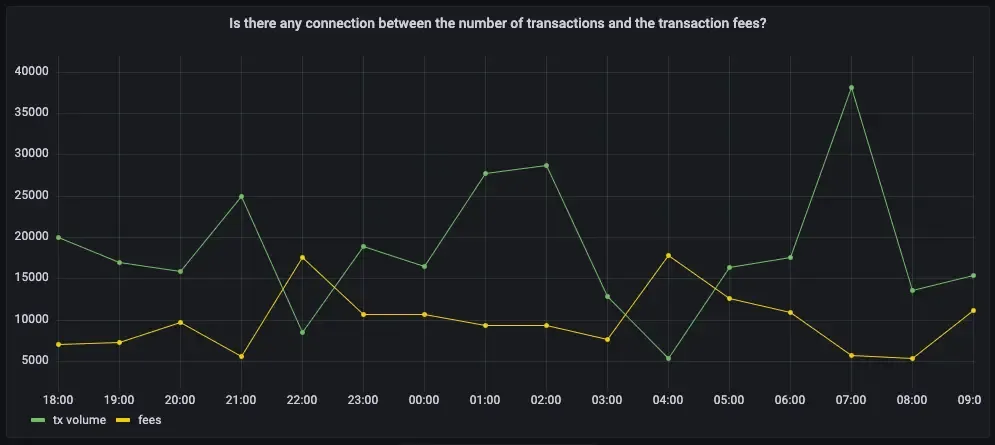
-
Does the transaction volume affect the BTC-USD rate?
Section titled “Does the transaction volume affect the BTC-USD rate?”In cryptocurrency trading, there’s a lot of speculation. You can adopt a data-based trading strategy by looking at correlations between blockchain metrics, such as transaction volume and the current exchange rate between Bitcoin and US Dollars.
If you choose to visualize the query in Grafana, you can see the average transaction volume, along with the BTC to US Dollar conversion rate.
- Connect to the Tiger Cloud service that contains the Bitcoin dataset
- Query the trading volume and the BTC to US Dollar exchange rate
At the psql prompt, use this query:
SELECTbucket AS "time",tx_count as "tx volume",total_fee_usd / (total_fee_sat*0.00000001) AS "btc-usd rate"FROM one_hour_transactionsWHERE bucket > date_add('2023-11-22 00:00:00+00', INTERVAL '-2 days')ORDER BY 1;The data you get back looks a bit like this:
time | tx volume | btc-usd rate------------------------+-----------+--------------------2023-06-13 08:00:00+00 | 20063 | 25975.8885879314262023-06-13 09:00:00+00 | 16984 | 25976.004463521262023-06-13 10:00:00+00 | 15856 | 25975.9885870145842023-06-13 11:00:00+00 | 24967 | 25975.891667879362023-06-13 12:00:00+00 | 8575 | 25976.004209699528... - Visualize this in Grafana
-
From the
Dashboardspage, clickNewand selectNew dashboard. -
Click
Add visualization, then select the data source that connects to your Tiger Cloud service. -
In the
Queriessection, change theFormattoTime seriesand selectCode. -
Type the query from the previous step and click
Run query. -
Under the panel options on the right, click
Add field override>Fields with name, then choosebtc-usd ratein the dropdown. -
Click
Add override property, then selectAxis > Placementand clickRight.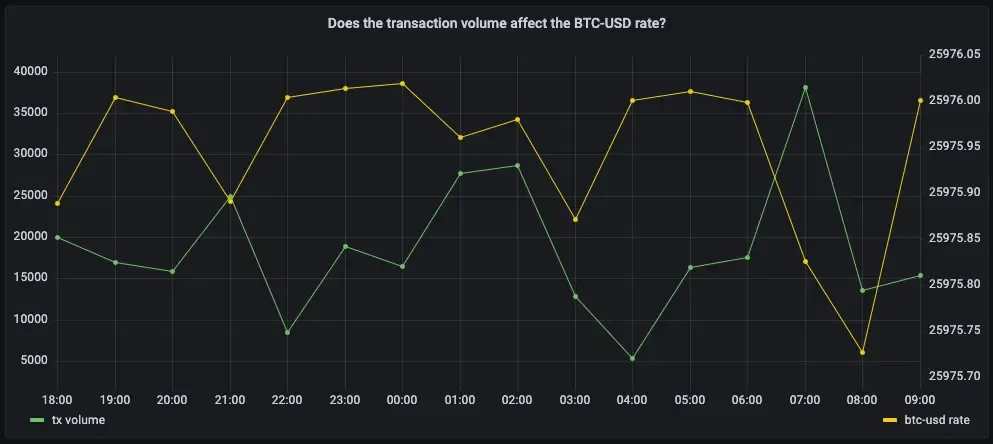
-
Do more transactions in a block mean the block is more expensive to mine?
Section titled “Do more transactions in a block mean the block is more expensive to mine?”The number of transactions in a block can influence the overall block mining fee. For this analysis, a larger time frame is required, so increase the analyzed time range to 5 days.
If you choose to visualize the query in Grafana, you can see that the more transactions in a block, the higher the mining fee becomes.
- Connect to the Tiger Cloud service that contains the Bitcoin dataset
- Query the number of transactions in a block, compared to the mining fee
At the psql prompt, use this query:
SELECTbucket as "time",avg(tx_count) AS transactions,avg(block_fee_sat)*0.00000001 AS "mining fee"FROM one_hour_blocksWHERE bucket > date_add('2023-11-22 00:00:00+00', INTERVAL '-5 days')GROUP BY bucketORDER BY 1;The data you get back looks a bit like this:
time | transactions | mining fee------------------------+-----------------------+------------------------2023-06-10 08:00:00+00 | 2322.2500000000000000 | 0.292214187500000000002023-06-10 09:00:00+00 | 3305.0000000000000000 | 0.505126496666666666672023-06-10 10:00:00+00 | 3011.7500000000000000 | 0.447832557500000000002023-06-10 11:00:00+00 | 2874.7500000000000000 | 0.393030095000000000002023-06-10 12:00:00+00 | 2339.5714285714285714 | 0.25590717142857142857 - Visualize this in Grafana
-
From the
Dashboardspage, clickNewand selectNew dashboard. -
Click
Add visualization, then select the data source that connects to your Tiger Cloud service. -
In the
Queriessection, change theFormattoTime seriesand selectCode. -
Type the query from the previous step and click
Run query. -
Under the panel options on the right, click
Add field override>Fields with name, then choosemining feein the dropdown. -
Click
Add override property, then selectAxis > Placementand clickRight.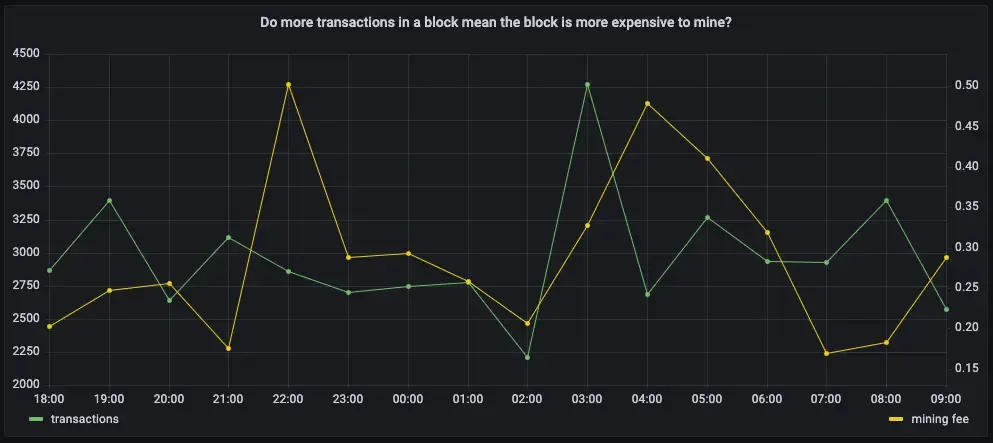
-
You can extend this analysis to find if there is the same correlation between block weight and mining fee. More transactions should increase the block weight, and boost the miner fee as well.
If you choose to visualize the query in Grafana, you can see the same kind of high correlation between block weight and mining fee. The relationship weakens when the block weight gets close to its maximum value, which is 4 million weight units, in which case it’s impossible for a block to include more transactions.
- Connect to the Tiger Cloud service that contains the Bitcoin dataset
- Query block weight compared to the mining fee
At the psql prompt, use this query:
SELECTbucket as "time",avg(block_weight) as "block weight",avg(block_fee_sat*0.00000001) as "mining fee"FROM one_hour_blocksWHERE bucket > date_add('2023-11-22 00:00:00+00', INTERVAL '-5 days')group by bucketORDER BY 1;The data you get back looks a bit like this:
time | block weight | mining fee------------------------+----------------------+------------------------2023-06-10 08:00:00+00 | 3992809.250000000000 | 0.292214187500000000002023-06-10 09:00:00+00 | 3991766.333333333333 | 0.505126496666666666672023-06-10 10:00:00+00 | 3992918.250000000000 | 0.447832557500000000002023-06-10 11:00:00+00 | 3991873.000000000000 | 0.393030095000000000002023-06-10 12:00:00+00 | 3992934.000000000000 | 0.25590717142857142857... - Visualize this in Grafana
-
From the
Dashboardspage, clickNewand selectNew dashboard. -
Click
Add visualization, then select the data source that connects to your Tiger Cloud service. -
In the
Queriessection, change theFormattoTime seriesand selectCode. -
Type the query from the previous step and click
Run query. -
Under the panel options on the right, click
Add field override>Fields with name, then choosemining feein the dropdown. -
Click
Add override property, then selectAxis > Placementand clickRight.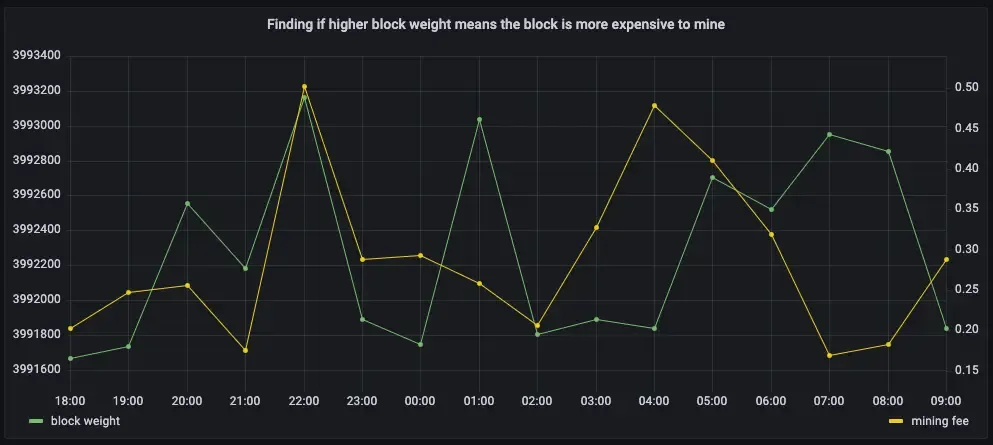
-
What percentage of the average miner’s revenue comes from fees compared to block rewards?
Section titled “What percentage of the average miner’s revenue comes from fees compared to block rewards?”In the previous queries, you saw that mining fees are higher when block weights and transaction volumes are higher. This query analyzes the data from a different perspective. Miner revenue is not only made up of miner fees, it also includes block rewards for mining a new block. This reward is currently 6.25 BTC, and it gets halved every four years. This query looks at how much of a miner’s revenue comes from fees, compares to block rewards.
If you choose to visualize the query in Grafana, you can see that most miner revenue actually comes from block rewards. Fees never account for more than a few percentage points of overall revenue.
- Connect to the Tiger Cloud service that contains the Bitcoin dataset
- Query coinbase transactions with block fees and rewards
At the psql prompt, use this query:
WITH coinbase AS (SELECT block_id, output_total AS coinbase_tx FROM transactionsWHERE is_coinbase IS TRUE and time > date_add('2023-11-22 00:00:00+00', INTERVAL '-5 days'))SELECTbucket as "time",avg(block_fee_sat)*0.00000001 AS "fees",FIRST((c.coinbase_tx - block_fee_sat), bucket)*0.00000001 AS "reward"FROM one_hour_blocks bINNER JOIN coinbase c ON c.block_id = b.block_idGROUP BY bucketORDER BY 1;The data you get back looks a bit like this:
time | fees | reward------------------------+------------------------+------------2023-06-10 08:00:00+00 | 0.28247062857142857143 | 6.250000002023-06-10 09:00:00+00 | 0.50512649666666666667 | 6.250000002023-06-10 10:00:00+00 | 0.44783255750000000000 | 6.250000002023-06-10 11:00:00+00 | 0.39303009500000000000 | 6.250000002023-06-10 12:00:00+00 | 0.25590717142857142857 | 6.25000000... - Visualize this in Grafana
-
From the
Dashboardspage, clickNewand selectNew dashboard. -
Click
Add visualization, then select the data source that connects to your Tiger Cloud service. -
In the
Queriessection, change theFormattoTime seriesand selectCode. -
Type the query from the previous step and click
Run query. -
In the options panel, in the
Graph stylessection, forStack seriesselect100%.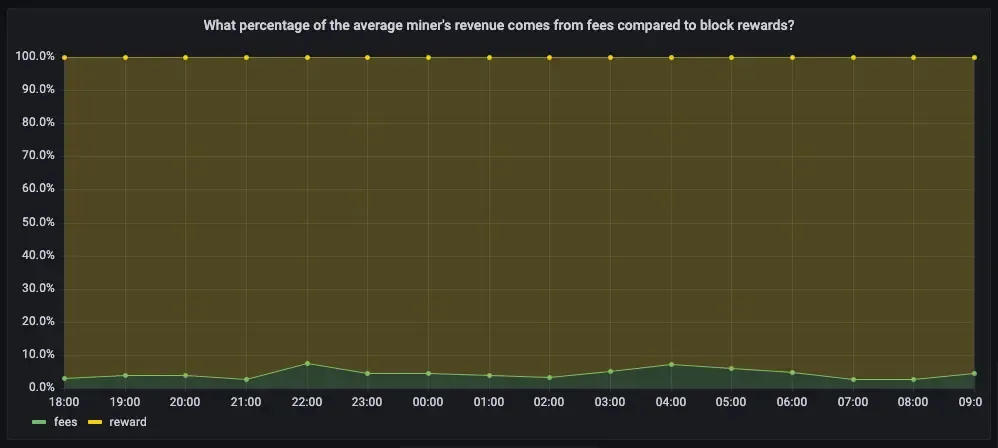
-
How does block weight affect miner fees?
Section titled “How does block weight affect miner fees?”You’ve already found that more transactions in a block mean it’s more expensive to mine. In this query, you ask if the same is true for block weights? The more transactions a block has, the larger its weight, so the block weight and mining fee should be tightly correlated. This query uses a 12-hour moving average to calculate the block weight and block mining fee over time.
If you choose to visualize the query in Grafana, you can see that the block weight and block mining fee are tightly connected. In practice, you can also see the four million weight units size limit. This means that there’s still room to grow for individual blocks, and they could include even more transactions.
- Connect to the Tiger Cloud service that contains the Bitcoin dataset
- Query block weight with block fees and rewards
At the psql prompt, use this query:
WITH stats AS (SELECTbucket,stats_agg(block_weight, block_fee_sat) AS block_statsFROM one_hour_blocksWHERE bucket > date_add('2023-11-22 00:00:00+00', INTERVAL '-5 days')GROUP BY bucket)SELECTbucket as "time",average_y(rolling(block_stats) OVER (ORDER BY bucket RANGE '12 hours' PRECEDING)) AS "block weight",average_x(rolling(block_stats) OVER (ORDER BY bucket RANGE '12 hours' PRECEDING))*0.00000001 AS "mining fee"FROM statsORDER BY 1;The data you get back looks a bit like this:
time | block weight | mining fee------------------------+--------------------+---------------------2023-06-10 09:00:00+00 | 3991766.3333333335 | 0.50512649666666662023-06-10 10:00:00+00 | 3992424.5714285714 | 0.472387102857142862023-06-10 11:00:00+00 | 3992224 | 0.443530009090909062023-06-10 12:00:00+00 | 3992500.111111111 | 0.370565572222222252023-06-10 13:00:00+00 | 3992446.65 | 0.39728022799999996... - Visualize this in Grafana
-
From the
Dashboardspage, clickNewand selectNew dashboard. -
Click
Add visualization, then select the data source that connects to your Tiger Cloud service. -
In the
Queriessection, change theFormattoTime seriesand selectCode. -
Type the query from the previous step and click
Run query. -
Under the panel options on the right, click
Add field override>Fields with name, then choosemining feein the dropdown. -
Click
Add override property, then selectAxis > Placementand clickRight.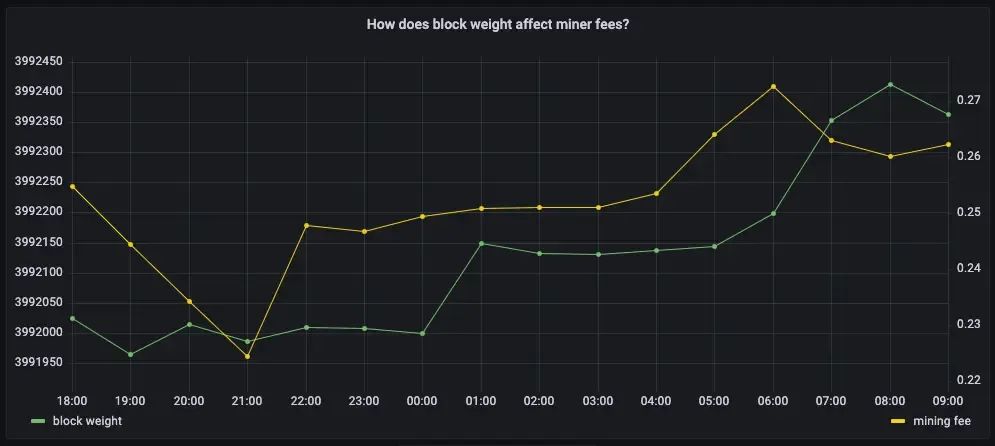
-
What’s the average miner revenue per block?
Section titled “What’s the average miner revenue per block?”In this final query, you analyze how much revenue miners actually generate by mining a new block on the blockchain, including fees and block rewards. To make the analysis more interesting, add the Bitcoin to US Dollar exchange rate, and increase the time range.
- Connect to the Tiger Cloud service that contains the Bitcoin dataset
- Query average miner revenue per block with a 12-hour moving average
At the psql prompt, use this query:
SELECTbucket as "time",average_y(rolling(stats_miner_revenue) OVER (ORDER BY bucket RANGE '12 hours' PRECEDING))*0.00000001 AS "revenue in BTC",average_x(rolling(stats_miner_revenue) OVER (ORDER BY bucket RANGE '12 hours' PRECEDING)) AS "revenue in USD"FROM one_hour_coinbaseWHERE bucket > date_add('2023-11-22 00:00:00+00', INTERVAL '-5 days')ORDER BY 1;The data you get back looks a bit like this:
time | revenue in BTC | revenue in USD------------------------+--------------------+--------------------2023-06-09 14:00:00+00 | 6.6732841925 | 176922.11332023-06-09 15:00:00+00 | 6.785046736363636 | 179885.15768181822023-06-09 16:00:00+00 | 6.7252952905 | 178301.027350000022023-06-09 17:00:00+00 | 6.716377454814815 | 178064.59780740742023-06-09 18:00:00+00 | 6.7784206471875 | 179709.487309375... - Visualize this in Grafana
-
From the
Dashboardspage, clickNewand selectNew dashboard. -
Click
Add visualization, then select the data source that connects to your Tiger Cloud service. -
In the
Queriessection, change theFormattoTime seriesand selectCode. -
Type the query from the previous step and click
Run query. -
Under the panel options on the right, click
Add field override>Fields with name, then chooserevenue in USDin the dropdown. -
Click
Add override property, then selectAxis > Placementand clickRight.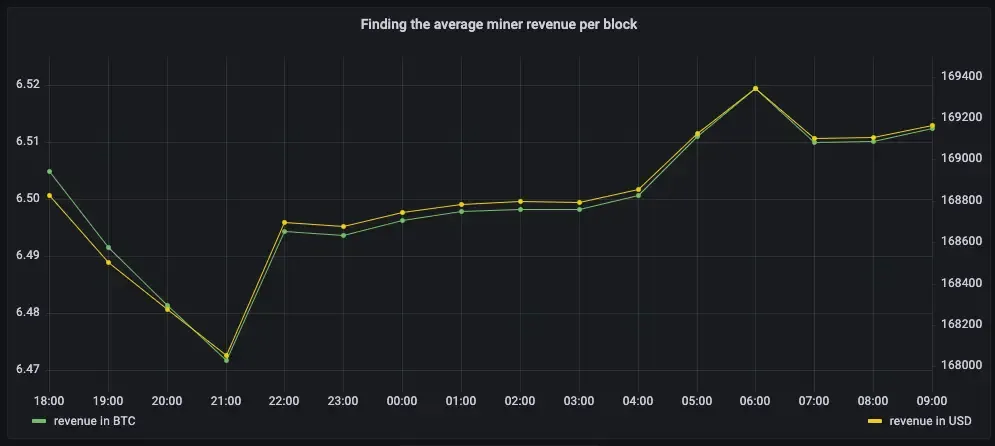
-