Find your connection details
Connect to Tiger Cloud, self-hosted TimescaleDB, or MST using your connection details
To connect to your Tiger Cloud service, self-hosted TimescaleDB, or Managed Service for TimescaleDB, you need at least the following:
- Hostname
- Port
- Username
- Password
- Database name
Find the connection details based on your deployment type:
Connect to your service
Section titled “Connect to your service”Retrieve the connection details for your Tiger Cloud service:
-
In
<service name>-credentials.txt:All connection details are supplied in the configuration file you download when you create a new service.
-
In Tiger Console:
Open the
Servicespage and select your service. The connection details, except the password, are available inService info>Connection info>More details. If necessary, clickForgot your password?to get a new one.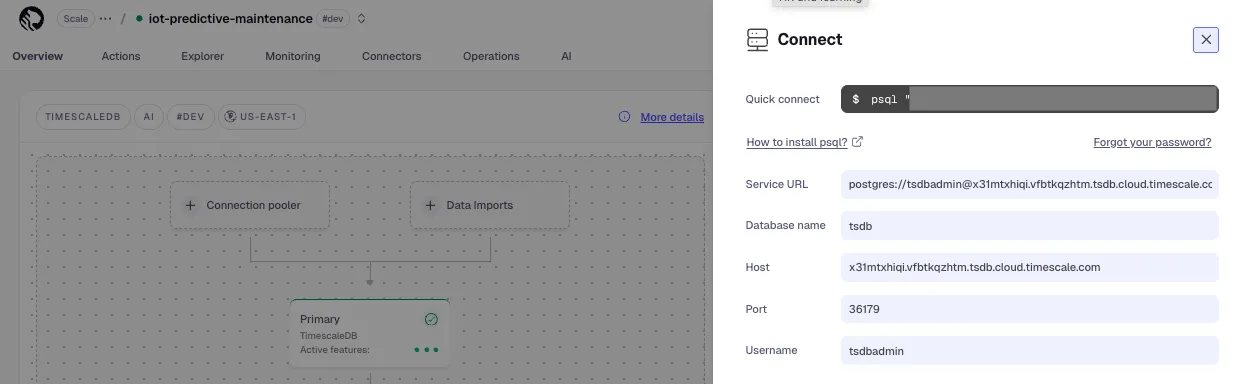
Find your project and service ID
Section titled “Find your project and service ID”To retrieve the connection details for your Tiger Cloud project and Tiger Cloud service:
-
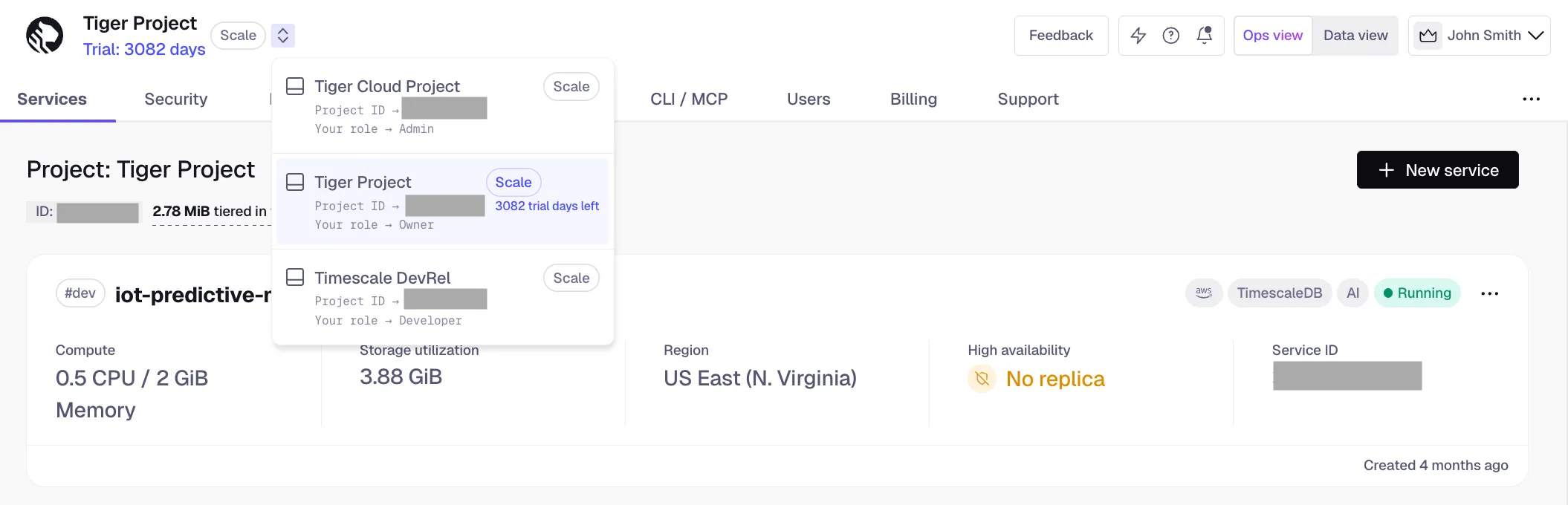
Retrieve your project ID:
In Tiger Console, click the arrows next to the project name in the top left. The project ID is under the project name.
-
Retrieve your service ID:
Click the dots next to the service, then click
Copynext to the service ID.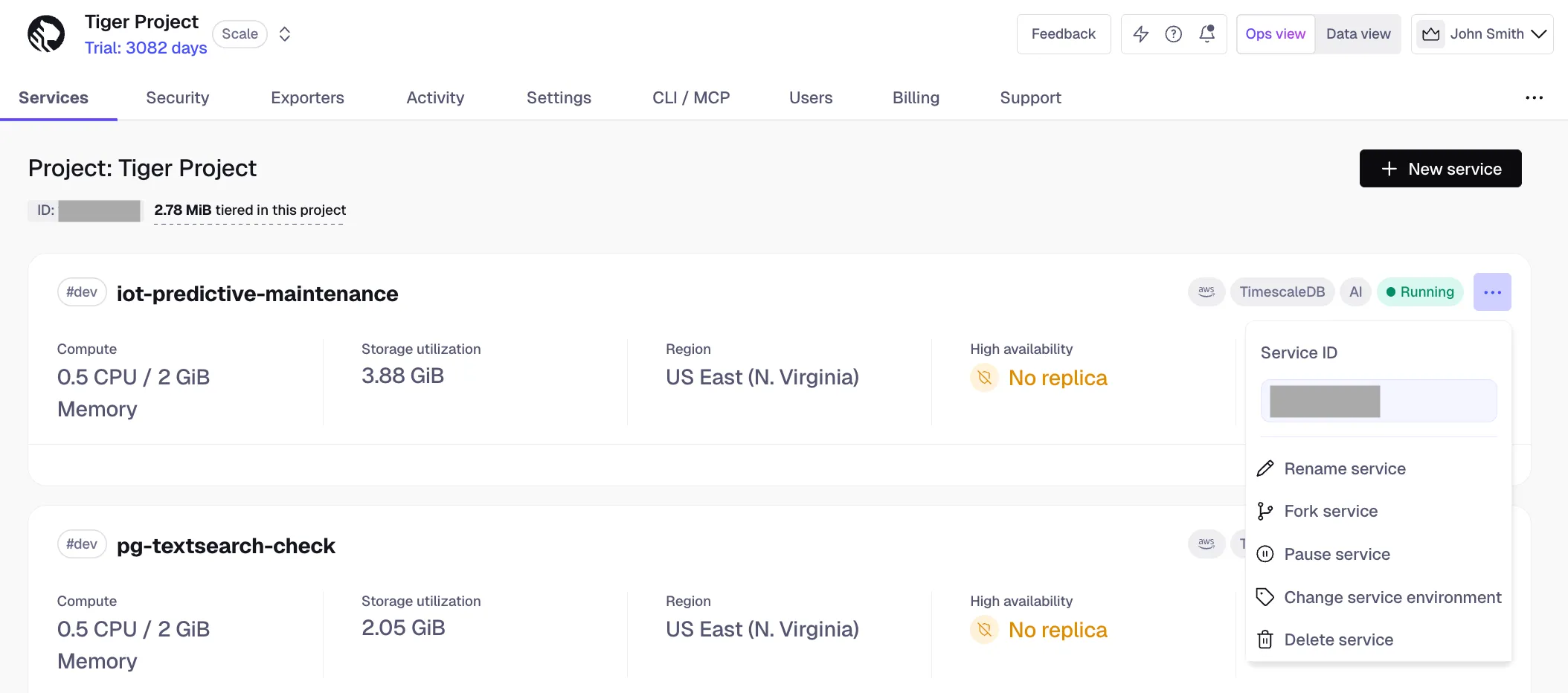
Create client credentials
Section titled “Create client credentials”You use client credentials to obtain access tokens outside of the user context.
To retrieve the connection details for your Tiger Cloud project for programmatic usage such as Terraform or the Tiger Cloud REST API:
-
Open the settings for your project:
In Tiger Console, click
Settings. -
Create client credentials:
-
Click
Create credentials, then copyPublic keyandSecret keylocally.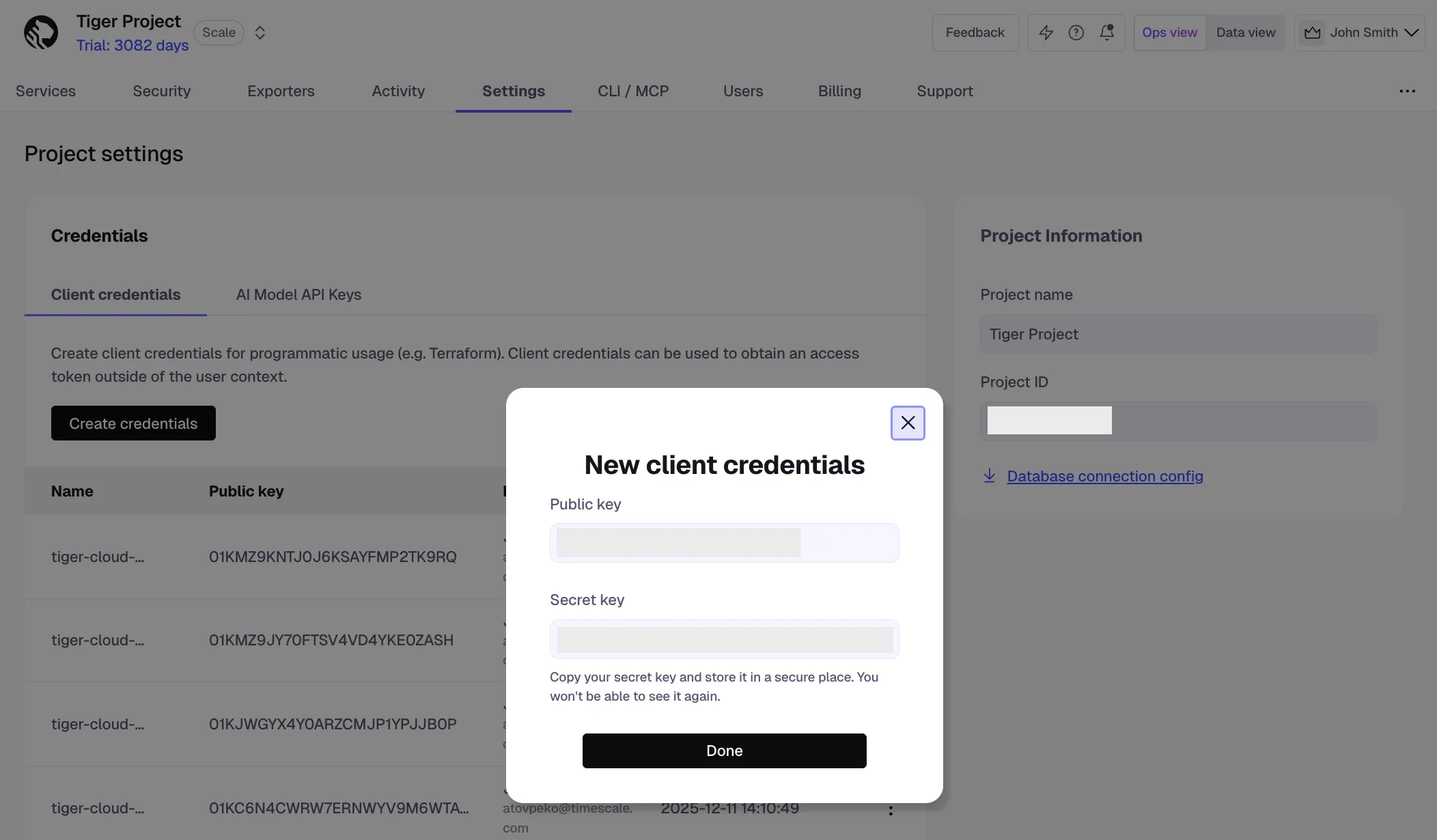
This is the only time you see the
Secret key. After this, only thePublic keyis visible in this page. -
Click
Done.
-
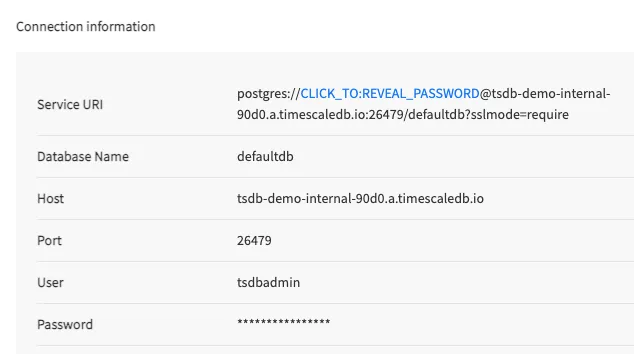
Find the connection details in the PostgreSQL configuration file or by asking your database administrator. The postgres superuser, created during PostgreSQL installation, has all the permissions required to run procedures in this documentation. However, it is recommended to create other users and assign permissions on the need-only basis.
In the Services page of the Managed Service for TimescaleDB Console, click the MST service you want to connect to. You see the connection details: