

Integrate Apache Airflow with Tiger Cloud
Author, schedule, and monitor workflows to orchestrate your data pipelines
A DAG (Directed Acyclic Graph) is the core concept of Airflow, collecting Tasks together,
organized with dependencies and relationships to say how they should run. You declare a DAG in a Python file
in the $AIRFLOW_HOME/dags folder of your Airflow instance.
This page shows you how to use a Python connector in a DAG to integrate Apache Airflow with a Tiger Cloud service.
Prerequisites
Section titled “Prerequisites”To follow the procedure on this page you need to:
-
Create a target Tiger Cloud service.
This procedure also works for self-hosted TimescaleDB.
-
Install Python3 and pip3
-
Install Apache Airflow
Ensure that your Airflow instance has network access to Tiger Cloud.
This example DAG uses the company table you create in Optimize time-series data in hypertables
Install python connectivity libraries
Section titled “Install python connectivity libraries”To install the Python libraries required to connect to Tiger Cloud:
-
Enable PostgreSQL connections between Airflow and Tiger Cloud
Terminal window pip install psycopg2-binary -
Enable PostgreSQL connection types in the Airflow UI
Terminal window pip install apache-airflow-providers-postgres
Create a connection between Airflow and your service
Section titled “Create a connection between Airflow and your service”In your Airflow instance, securely connect to your Tiger Cloud service:
-
Run Airflow
On your development machine, run the following command:
Terminal window airflow standaloneThe username and password for Airflow UI are displayed in the
standalone | Login with usernameline in the output. -
Add a connection from Airflow to your Tiger Cloud service
- In your browser, navigate to
localhost:8080, then selectAdmin>Connections. - Click
+(Add a new record), then use your connection info to fill in the form. TheConnection TypeisPostgres.
- In your browser, navigate to
Exchange data between Airflow and your service
Section titled “Exchange data between Airflow and your service”To exchange data between Airflow and your Tiger Cloud service:
-
Create and execute a DAG
To insert data in your Tiger Cloud service from Airflow:
-
In
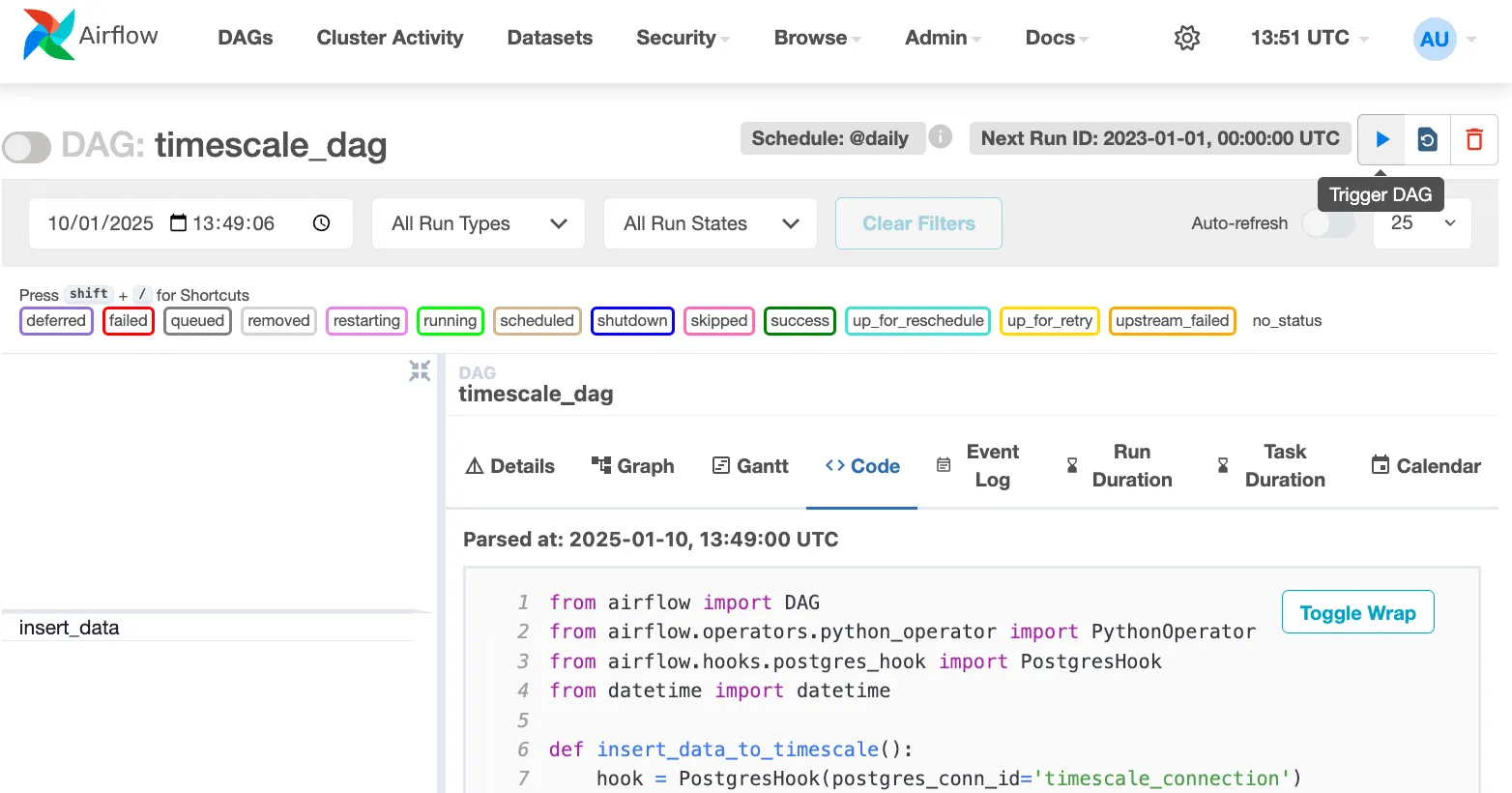
$AIRFLOW_HOME/dags/timescale_dag.py, add the following code:from airflow import DAGfrom airflow.operators.python_operator import PythonOperatorfrom airflow.hooks.postgres_hook import PostgresHookfrom datetime import datetimedef insert_data_to_timescale():hook = PostgresHook(postgres_conn_id='the ID of the connenction you created')conn = hook.get_conn()cursor = conn.cursor()"""This could be any query. This example inserts data into the tableyou create in:https://www.tigerdata.com/docs/getting-started/latest/try-key-features-timescale-products/#optimize-time-series-data-in-hypertables-with-hypercore"""cursor.execute("INSERT INTO crypto_assets (symbol, name) VALUES (%s, %s)",('NEW/Asset','New Asset Name'))conn.commit()cursor.close()conn.close()default_args = {'owner': 'airflow','start_date': datetime(2023, 1, 1),'retries': 1,}dag = DAG('timescale_dag', default_args=default_args, schedule_interval='@daily')insert_task = PythonOperator(task_id='insert_data',python_callable=insert_data_to_timescale,dag=dag,)This DAG uses the
companytable created in Create regular PostgreSQL tables for relational data. -
In your browser, refresh the Airflow UI.
-
In
Search DAGS, typetimescale_dagand press ENTER. -
Press the play icon and trigger the DAG:
-
-
Verify that the data appears in Tiger Cloud
-
In Tiger Console, navigate to your service and click
SQL editor. -
Run a query to view your data. For example:
SELECT symbol, name FROM company;.You see the new rows inserted in the table.
-
You have successfully integrated Apache Airflow with Tiger Cloud and created a data pipeline.