

Integrate Azure Monitor with Tiger Cloud
Export telemetry data to monitor and analyze your service performance and health with Azure Monitor
Azure Monitor is a comprehensive monitoring and observability service designed to help you maximize the availability and performance of your applications and services. It collects, analyzes, and acts on telemetry data from your cloud and on-premises environments.
You can export telemetry data from your Tiger Cloud services with the time-series and analytics capability enabled to Azure Monitor. See Exported metrics for the full list of default and additional metrics you can export.
This page explains how to export telemetry data from your Tiger Cloud service into Azure Monitor by creating a Tiger Cloud data exporter, then attaching it to the service. This integration is available for Scale and Enterprise pricing tiers.
Prerequisites
Section titled “Prerequisites”To follow the steps on this page:
- Create a target Tiger Cloud service with the Real-time analytics capability.
-
Get an Azure subscription with access to Azure Monitor and Application Insights.
You need your Azure Monitor Application Insights connection string to follow this procedure.
This feature is currently not supported for Tiger Cloud on AWS.
Create a data exporter
Section titled “Create a data exporter”A Tiger Cloud data exporter sends telemetry data from a Tiger Cloud service to third-party monitoring tools. You create an exporter on the project level:
- In Tiger Console, open Exporters
- Click
New exporter - Select
MetricsforData typeandAzure Monitorfor provider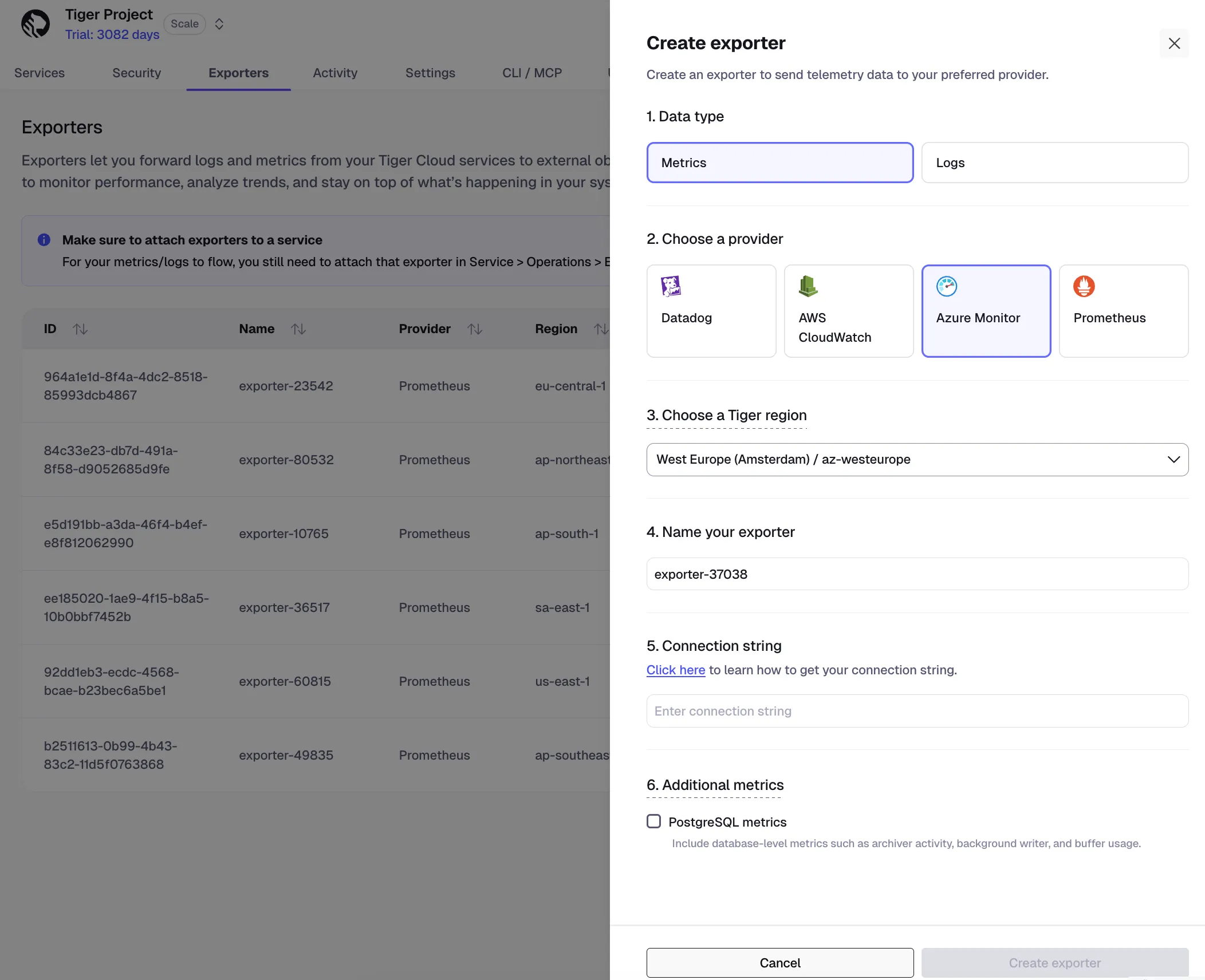
- Choose the region for your exporter
- Provide a name for your exporter
The exporter name appears in Tiger Console, best practice is to make this name easily understandable.
- Add your connection string
Learn where to find your connection string.
- Export additional metrics
Optionally tick
PostgreSQL metricsto export additional metrics, then clickCreate exporter.
Your exporter is created and added to the list of already existing exporters.
Manage a data exporter
Section titled “Manage a data exporter”This section shows you how to attach, edit, and delete a data exporter.
Attach a data exporter to a Tiger Cloud service
To send telemetry data to an external monitoring tool, you attach a data exporter to your Tiger Cloud service. You can attach only one exporter to a service.
To attach an exporter:
- In Tiger Console, choose the service
- Click
Operations>Exporters - Select the exporter, then click
Attach exporter - If you are attaching a first
Logsdata type exporter, restart the service
You can now monitor your service metrics.
Edit a data exporter
To update a data exporter:
- In Tiger Console, open Exporters
- Next to the exporter you want to edit, click the menu >
Edit - Edit the exporter fields and save your changes
Delete a data exporter
To remove a data exporter that you no longer need:
- Disconnect the data exporter from your Tiger Cloud service
- In Tiger Console, choose the service.
- Click
Operations>Exporters. - Click the trash can icon next to the exporter.
- Repeat for every service attached to the exporter you want to remove.
The data exporter is now unattached from all services. However, it still exists in your project.
- Delete the exporter on the project level
- In Tiger Console, open Exporters
- Next to the exporter you want to edit, click menu >
Delete - Confirm that you want to delete the data exporter.