

Integrate Google Cloud with Tiger Cloud
Connect your Google Cloud infrastructure to Tiger Cloud using AWS Transit Gateway
Google Cloud is a suite of cloud computing services, offering scalable infrastructure, AI, analytics, databases, security, and developer tools to help businesses build, deploy, and manage applications.
This page explains how to integrate your Google Cloud infrastructure with Tiger Cloud using AWS Transit Gateway.
Prerequisites
Section titled “Prerequisites”To follow the steps on this page:
-
Create a target Tiger Cloud service with the Real-time analytics capability.
You need your connection details.
-
Set up AWS Transit Gateway.
-
Establish connectivity between Google Cloud and AWS.
This feature is currently not supported for Tiger Cloud on Microsoft Azure.
Connect your Google Cloud infrastructure to your services
Section titled “Connect your Google Cloud infrastructure to your services”To connect to Tiger Cloud:
-
Create a Peering VPC in Tiger Console
-
In
Security>VPC, clickCreate a VPC: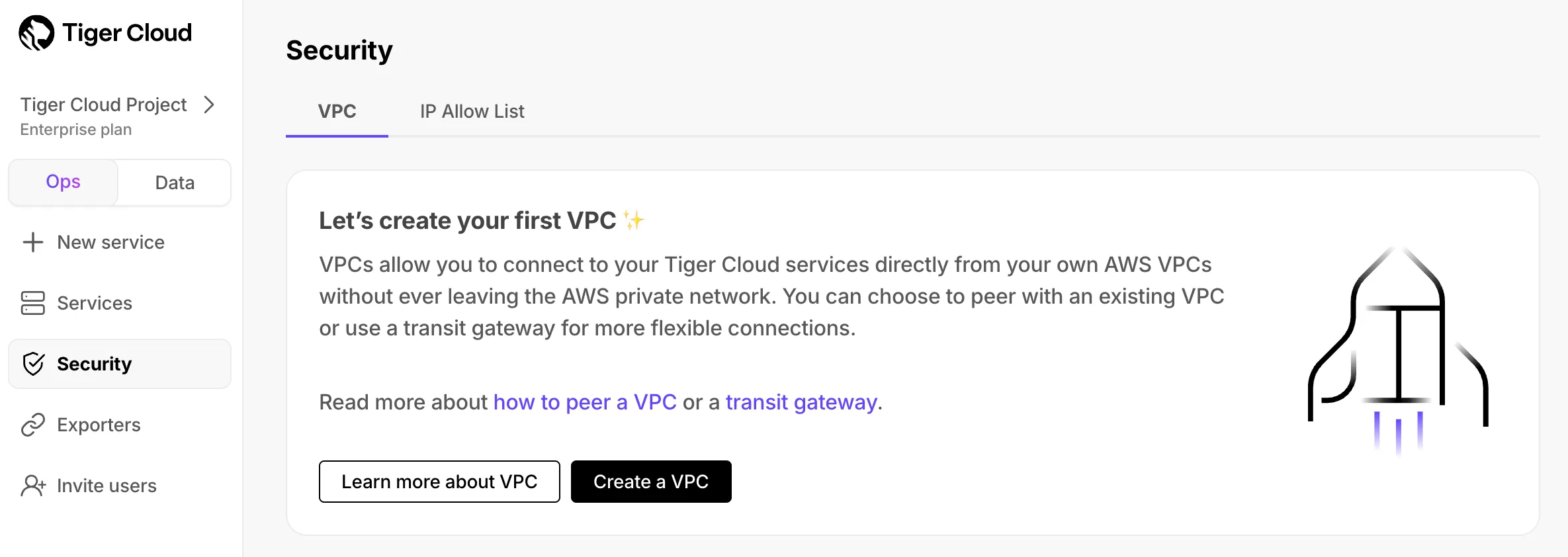
-
Choose your region and IP range, name your VPC, then click
Create VPC: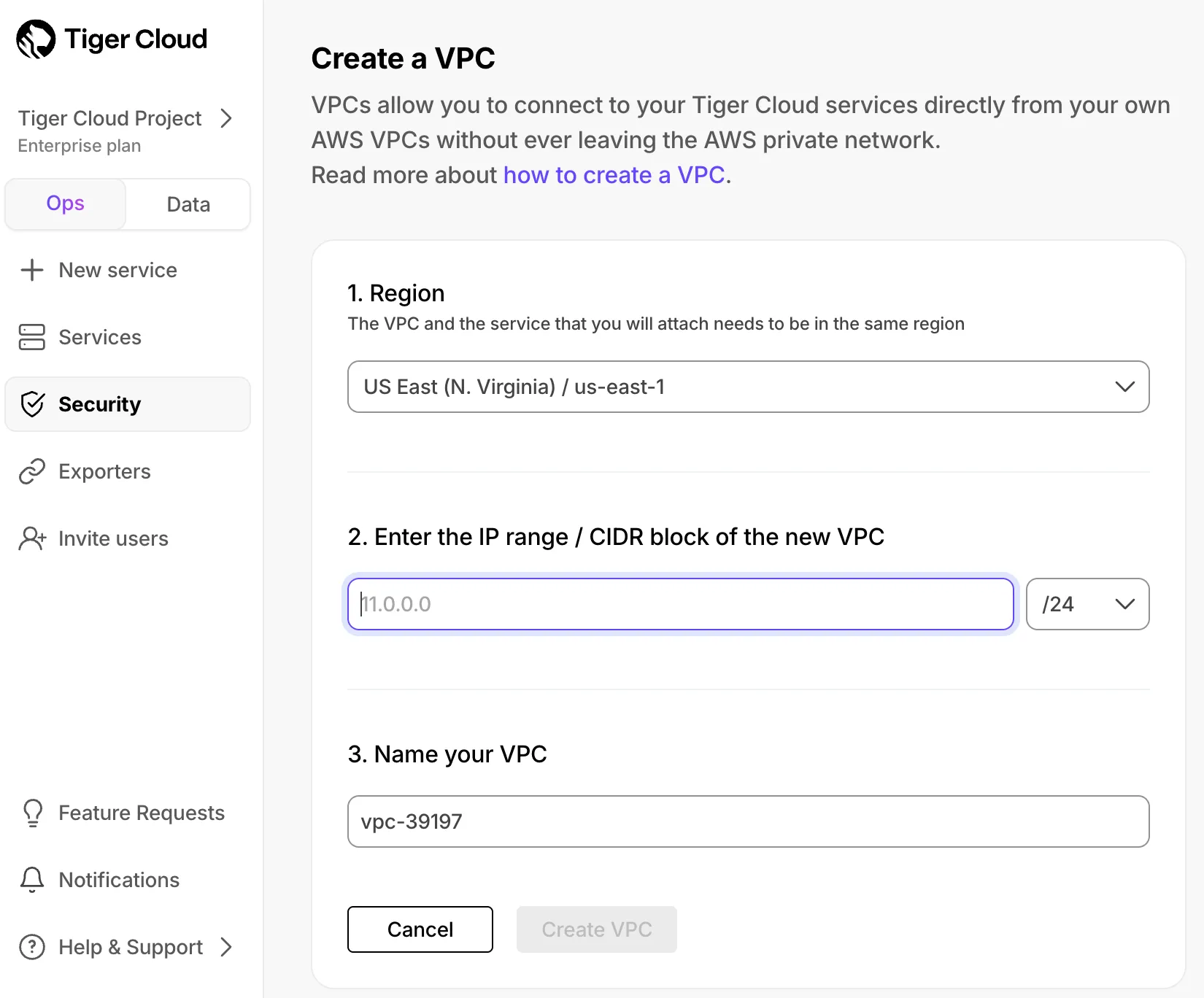
Your service and Peering VPC must be in the same AWS region. The number of Peering VPCs you can create in your project depends on your pricing plan. If you need another Peering VPC, either contact support@tigerdata.com or change your plan in Tiger Console.
-
Add a peering connection:
- In the
VPC Peeringcolumn, clickAdd. - Provide your AWS account ID, Transit Gateway ID, CIDR ranges, and AWS region. Tiger Cloud creates a new isolated connection for every unique Transit Gateway ID.
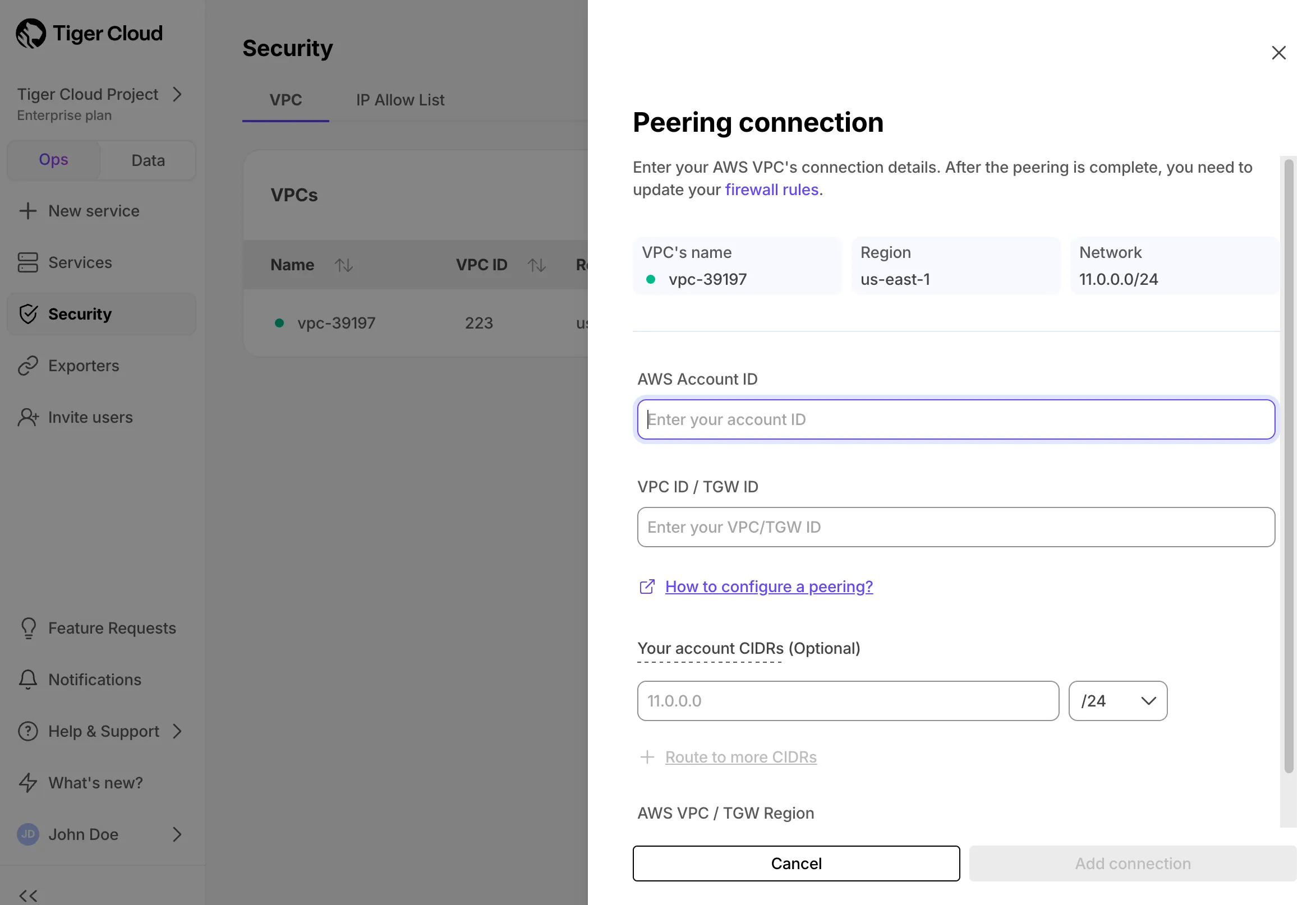
- Click
Add connection.
- In the
-
-
Accept and configure peering connection in your AWS account
Once your peering connection appears as
Processing, you can accept and configure it in AWS:-
Accept the peering request coming from Tiger Cloud. The request can take up to 5 min to arrive. Within 5 more minutes after accepting, the peering should appear as
Connectedin Tiger Console. -
Configure at least the following in your AWS account networking:
- Your subnet route table to route traffic to your Transit Gateway for the Peering VPC CIDRs.
- Your Transit Gateway route table to route traffic to the newly created Transit Gateway peering attachment for the Peering VPC CIDRs.
- Security groups to allow outbound TCP 5432.
-
-
Attach a Tiger Cloud service to the Peering VPC In Tiger Console
- Select the service you want to connect to the Peering VPC.
- Click
Operations>Security>VPC. - Select the VPC, then click
Attach VPC.
You cannot attach a Tiger Cloud service to multiple Tiger Cloud VPCs at the same time.
You have successfully integrated your Google Cloud infrastructure with Tiger Cloud.