

Control user access to projects
Manage project roles, add and remove users, and transfer ownership
When you sign up for a $1000-credit, 30-day free trial, Tiger Cloud creates a project with built-in role-based access.
This includes the following roles:
- Owner: Tiger Cloud assigns this role to you when your project is created. As the Owner, you can add and delete other users, transfer project ownership, administer services, and edit project settings.
- Admin: the Owner assigns this role to other users in the project. A user with the Admin role has the same scope of rights as the Owner but cannot transfer project ownership.
- Developer: the Owner and Admins assign this role to other users in the project. A Developer can build, deploy, and operate services across projects, but does not have administrative privileges over users, roles, or billing. A Developer can invite other users to the project, but only with the Viewer role.
- Viewer: the Owner and Admins assign this role to other users in the project. A Viewer has limited, read-only access to Tiger Console. This means that a Viewer cannot modify services and their configurations in any way. A Viewer has no access to Data view and has read-queries-only access to SQL editor.
If you have the Enterprise pricing plan, you can use your company SAML identity provider to log in to Console.
Add a user to your project
New users do not need to have a Tiger Cloud account before you add them, they are prompted to create one when they respond to the confirmation email. Existing users join a project in addition to the other projects they are already members of.
To add a user to a project:
- In Tiger Console, click
Users, then clickAdd new user - Type the email address of the person that you want to add, select their role, and click
Invite userEnterprise pricing plan and SAML users receive a notification in Console. Users in the other pricing plans receive a confirmation email. The new user then joins the project.
Join a project
When you are asked to join a project, Tiger Console sends you an invitation email. Follow the instructions in the invitation email to join the project:
- In the invitation email, click
Accept InviteTiger Cloud opens.
- Follow the setup wizard and create a new account
You are added to the project you were invited to.
- In the invitation email, click
Accept InviteTiger Console opens, and you are added to the project.
- Log in to Console using your company's identity provider
- Click
Notifications, then accept the invitationTiger Console opens, and you are added to the project. As you are now included in more than one project, you can easily change projects.
Resend a project invitation
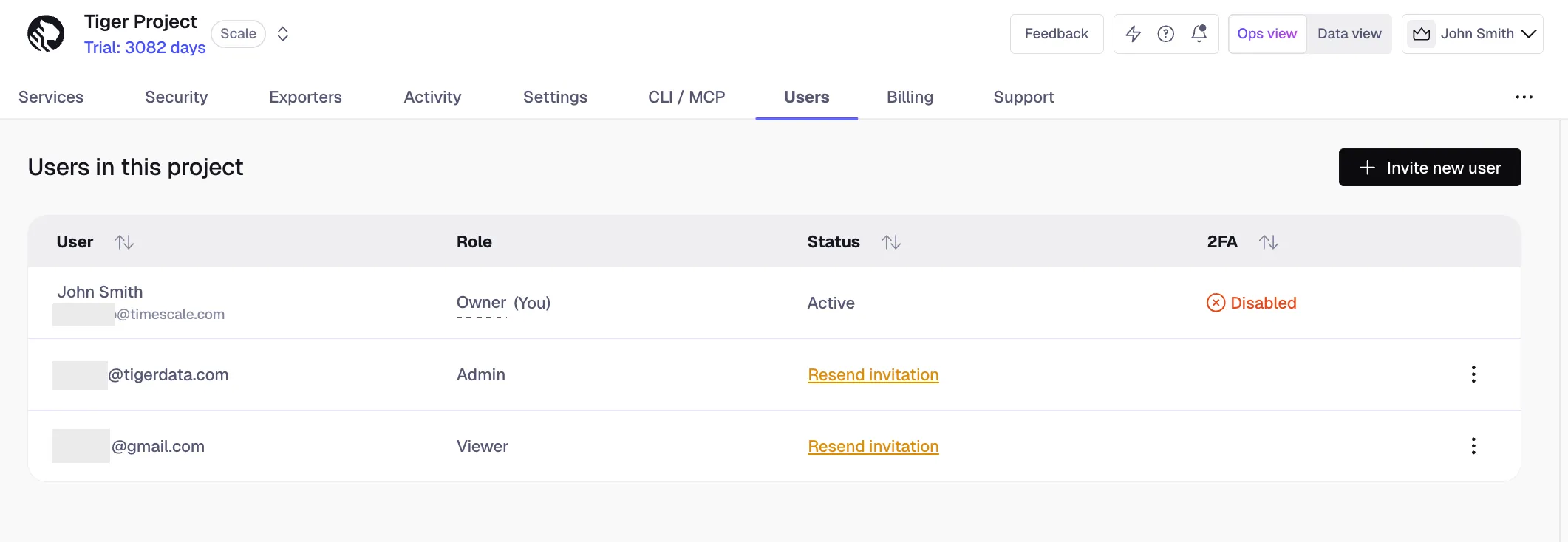
Project invitations are valid for 7 days. To resend a project invitation:
- In Tiger Console, click
Users - Next to the person you want to invite to your project, click
Resend invitation
Change your current project
To change the project you are currently working in:
- In Tiger Console, click the arrows next to the project name in the top left
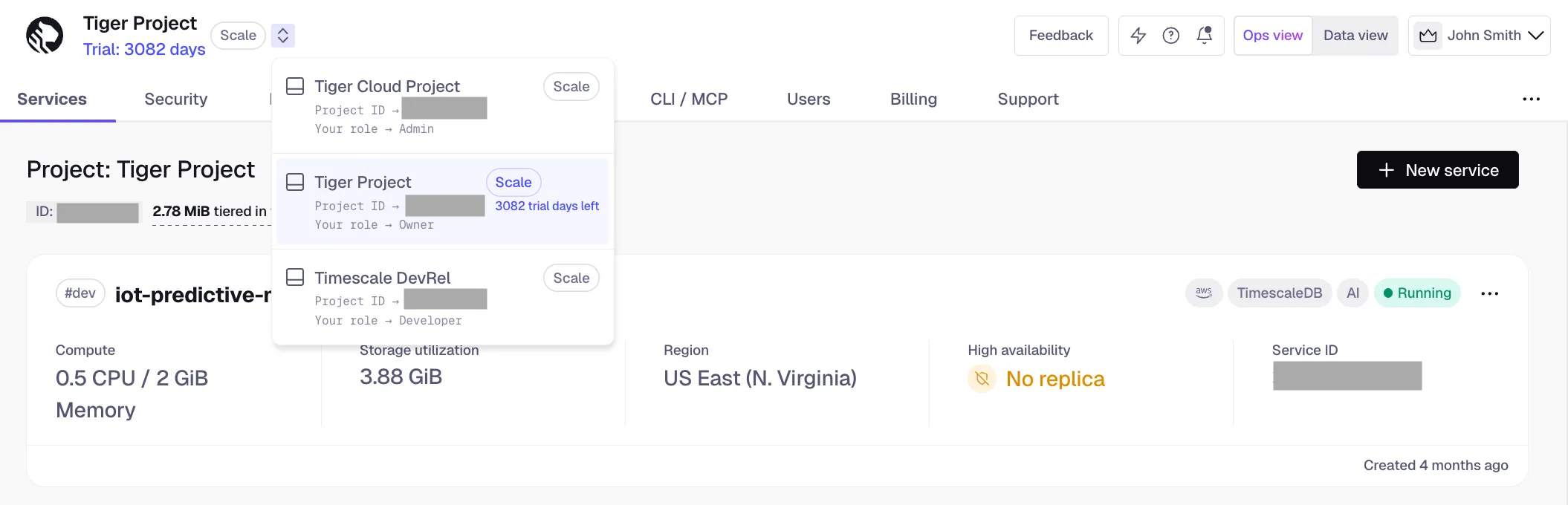
- Select the project you want to use
Transfer project ownership
Each Tiger Cloud project has one Owner. As the project Owner, you have rights to add and delete users, edit project settings, and transfer the Owner role to another user. When you transfer ownership to another user, you lose your ownership rights.
To transfer project ownership:
- In Tiger Console, click
Users - Next to the person you want to transfer project ownership to, click
⋮>Transfer project ownershipIf you are unable to transfer ownership, hover over the greyed out button to see the details.
- Enter your password, and click
Verify - Complete the two-factor authentication challenge and click
Confirm
If you have the Enterprise pricing plan, and log in to Tiger Cloud using SAML authentication or have not enabled two-factor authentication, contact support to transfer project ownership.
Leave a project
To stop working in a project:
- In Tiger Console, click
Users - Click
⋮>Leave project, then clickLeaveYour account is removed from the project immediately, you can no longer access this project.
Change roles of other users in a project
The Owner can change the roles of all users in the project. An Admin can change the roles of all users other than the Owner. Developer and Viewer cannot change the roles of other users.
To change the role for another user:
- In Tiger Console, click
Users - Next to the corresponding user, select another role in the dropdown
The user role is changed immediately.
Remove users from a project
To remove a user’s access to a project:
- In Tiger Console, click
Users - Next to the person you want to remove, click
⋮>Remove - In
Remove user, clickRemoveThe user is deleted immediately, they can no longer access your project.