

Create an MST service
Create and connect to a service in Managed Service for TimescaleDB
Managed Service for TimescaleDB (MST) is hosted TimescaleDB offered in partnership with Aiven.
Create your first service
Section titled “Create your first service”A service in Managed Service for TimescaleDB is a cloud instance on your chosen cloud provider, which you can install your database on.
- Sign in to your MST Console
Sign in to your Managed Service for TimescaleDB Console.
- Click
Create serviceand chooseTimescaleDBUpdate your preferences:
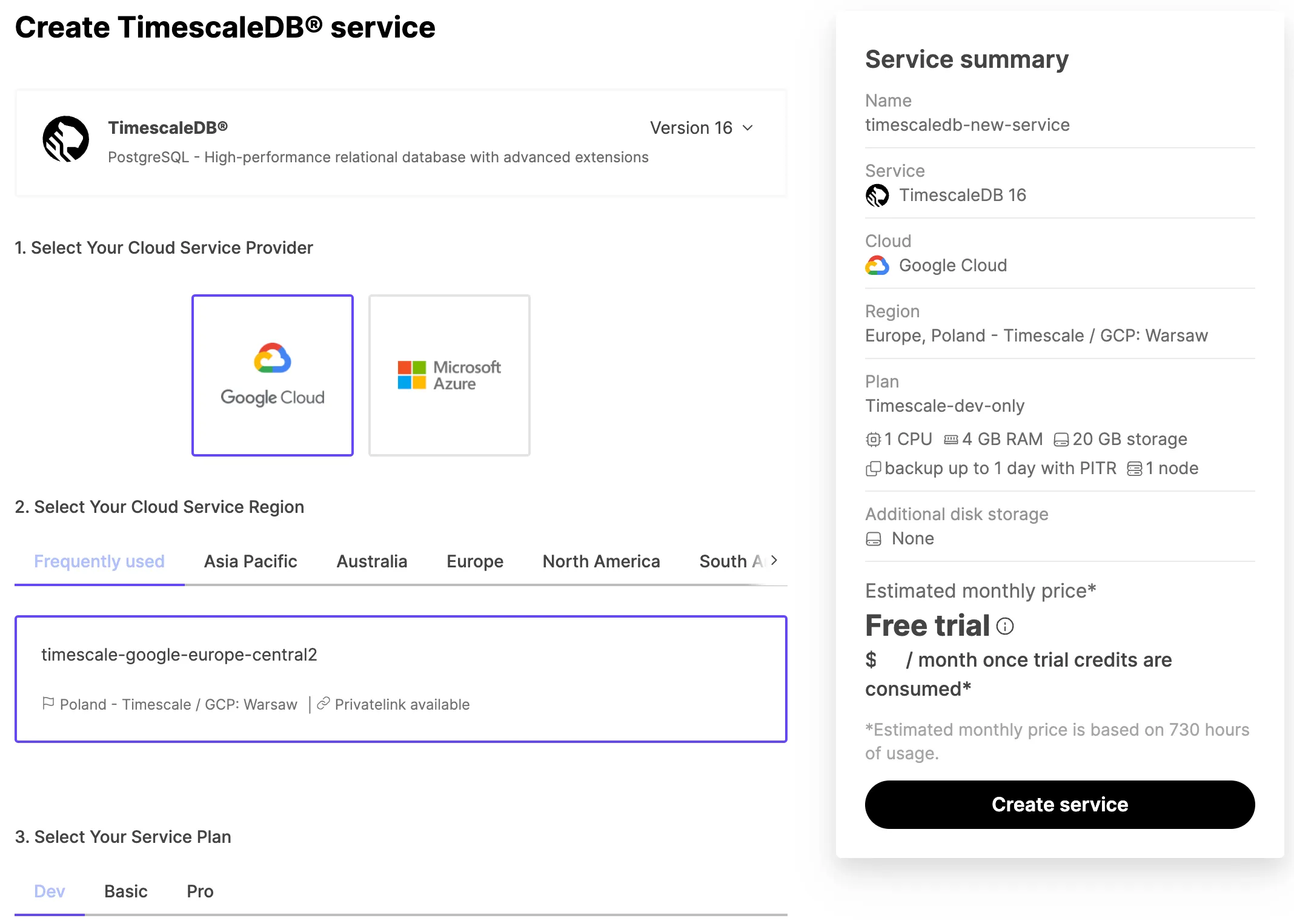
- In the
Select Your Cloud Service Providerfield, click your preferred provider. - In the
Select Your Cloud Service Regionfield, click your preferred server location. This is often the server that’s physically closest to you. - In the
Select Your Service Planfield, click your preferred plan, based on the hardware configuration you require. If you are in your trial period, and just want to try the MST service out, or develop a proof of concept, we recommend theDevplan, because it is the most cost-effective during your trial period.
- In the
- Review your settings and click
Create ServiceIn the information bar on the right of the screen, review the settings you have selected for your MST service. The MST service takes a few minutes to provision.
Connect to your MST service from the command prompt
Section titled “Connect to your MST service from the command prompt”When you have an MST service up and running, you can connect to it from your local
system using the psql command-line utility. This is the same tool you might
have used to connect to PostgreSQL before, but if you haven’t installed it yet,
check out the installing psql section.
- Sign in to your MST Console
Sign in to your MST Console.
- Find your service
In the
Servicestab, find the MST service you want to connect to, and check it is marked asRunning. - Get the connection details
Click the name of the MST service you want to connect to see the connection information. Take a note of the
host,port, andpassword. - Connect with psql
On your local system, at the command prompt, connect to the MST service, using your own MST service details:
Terminal window psql -x "postgres://tsdbadmin:<PASSWORD>@<HOSTNAME>:<PORT>/defaultdb?sslmode=require"If your connection is successful, you’ll see a message like this, followed by the
psqlprompt:Terminal window psql (13.3, server 13.4)SSL connection (protocol: TLSv1.3, cipher: TLS_AES_256_GCM_SHA384, bits: 256, compression: off)Type "help" for help.defaultdb=>
Check that you have the TimescaleDB extension
Section titled “Check that you have the TimescaleDB extension”TimescaleDB is provided as an extension to your PostgreSQL database, and it is
enabled by default when you create a new MST service on Managed Service for TimescaleDB. You can check that the TimescaleDB extension is installed by using
the \dx command at the psql prompt. It looks like this:
defaultdb=> \dx
List of installed extensions-[ RECORD 1 ]------------------------------------------------------------------Name        | plpgsqlVersion     | 1.0Schema      | pg_catalogDescription | PL/pgSQL procedural language-[ RECORD 2 ]------------------------------------------------------------------Name        | timescaledbVersion     | 2.5.1Schema      | publicDescription | Enables scalable inserts and complex queries for time-series data
defaultdb=>
Install and update TimescaleDB Toolkit
Section titled “Install and update TimescaleDB Toolkit”Run this command on each database you want to use Toolkit with:
CREATE EXTENSION timescaledb_toolkit;Update an installed version of Toolkit using this command:
ALTER EXTENSION timescaledb_toolkit UPDATE;Where to next
Section titled “Where to next”Now that you have your first MST service up and running, check out the rest of the docs in this section, to find out what you can do with it.
If you want to work through some tutorials to help you get up and running with TimescaleDB and time-series data, check out Learn.
You can always contact us for any questions you might have.