

Multi-factor authentication
Set up two-factor authentication for your Tiger Cloud account
You can use two-factor authentication to log in to your Tiger Cloud account. Two-factor authentication, also known as two-step verification or 2FA, enables secure logins that require an authentication code in addition to your user password. The code is provided by an authenticator app on your mobile device. There are multiple authenticator apps available.
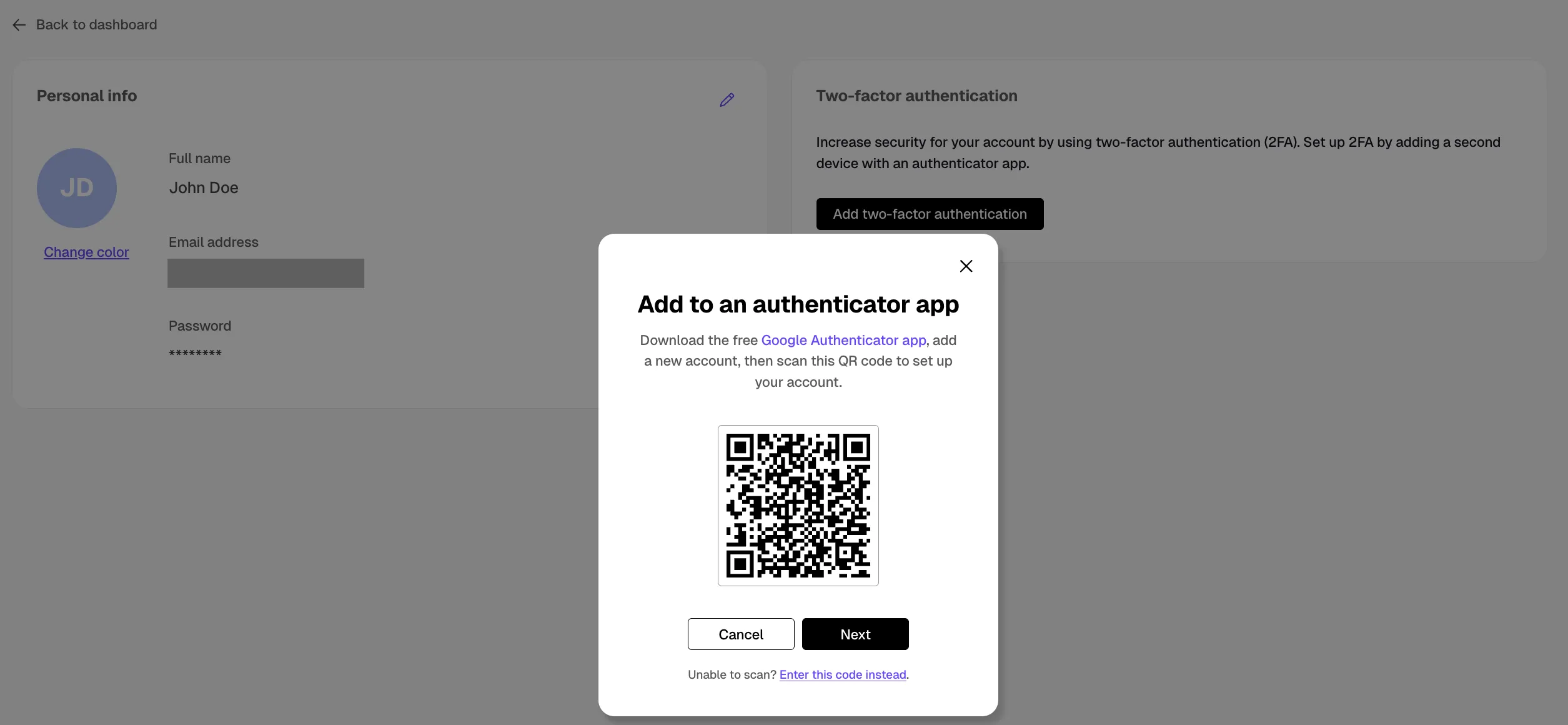
This page describes how to configure two-factor authentication with Google Authenticator.
Prerequisites
Before you begin, make sure you have:
- Installed the Google Authenticator application on your mobile device.
Configure two-factor authentication with Google Authenticator
Take the following steps to configure two-factor authentication:
- Log in to Tiger Console with your username and password. 2FA is not available if you log in with Google SSO.
- Click your user name in the top right of Tiger Console and select
Account settings - Click
Add two-factor authentication - On your mobile device, open Google Authenticator, tap
+, and selectScan a QR code - Scan the QR code provided by Tiger Console in
Connect to an authenticator appand clickNext - In Tiger Console, enter the verification code provided by Google Authenticator, and click
Next - In
Save your recovery codes, copy, download, or print the recovery codesThese are used to recover your account if you lose your device.
- Verify that you have saved your recovery codes, by clicking
OK, I saved my recovery codes - If two-factor authentication is enabled correctly, an email notification is sent to you
Regenerate recovery codes
If you do not have access to your authenticator app and need to log in to Tiger Console, you can use your recovery codes. Recovery codes are single-use. If you’ve used all 10 recovery codes, or lost access to them, you can generate another list. Generating a new list invalidates all previously generated codes.
- Log in to Tiger Console with your username and password
- Click your user name in the top right and select
Account settings - In
Two-factor authentication, clickRegenerate recovery codes - Enter the verification code from your authenticator app
Alternatively, if you do not have access to the authenticator app, click
Use recovery code insteadto enter a recovery code. - Click
Next - In
Save your recovery codes, copy, download, or print the recovery codesThese are used to recover your account if you lose your device.
- Verify that you have saved your recovery codes, by clicking
OK, I saved my recovery codes
Remove two-factor authentication
If you need to enroll a new device for two-factor authentication, you can remove two-factor authentication from your account and then add it again with your new device.
- Log in to Tiger Console with your username and password
- Click your user name in the top right of Tiger Console and select
Account settings - In
Two-factor authentication, clickRemove two-factor authentication - Enter the verification code from your authenticator app to confirm
Alternatively click
Use recovery code insteadto type the recovery code. - Click
Remove