

Fork services
Fork a service to create isolated database branches for testing and development
Modern development is highly iterative. Developers and AI agents need safe spaces to test changes before deploying them to production. Forkable services make this natural and easy. Spin up a branch, run your test, throw it away, or merge it back.
A fork is an exact copy of a service at a specific point in time, with its own independent data and configuration, including:
- The database data and schema
- Configuration
- An admin
tsdbadminuser with a new password
Forks are fully independent. Changes to the fork don’t affect the parent service. You can query them, run migrations, add indexes, or test new features against the fork without affecting the original service.
Forks are a powerful way to share production-scale data safely. Testing, BI and data science teams often need access to real datasets to build models or generate insights. With forkable services, you easily create fast, zero-copy branches of a production service that are isolated from production, but contain all the data needed for analysis. Rapid fork creation dramatically reduces friction getting insights from live data.
Understand service forks
You can use service forks for disaster recovery, CI/CD automation, and testing and development. For example, you can automatically test a major PostgreSQL upgrade on a fork before applying it to your production service.
Tiger Cloud offers the following fork strategies:
-
now: create a fresh fork of your database at the current time. Use when:- You need the absolute latest data
- Recent changes must be included in the fork
-
last-snapshot: fork from the most recent automatic backup. Because Tiger Cloud takes automatic backups daily, this is usually within the previous 24 hours of your service. To see when the latest backup was taken, checkBackup historyin Tiger Console. Use when:- You want the fastest possible fork creation
- Up to 24 hours behind current data is acceptable
-
timestamp: fork from a specific point in time, up to 14 days before, depending on your pricing plan. Use when:- Disaster recovery from a known-good state
- Investigating issues that occurred at a specific time
- Testing “what-if” scenarios from historical data
Fork creation speed
Fork creation speed depends on the type of service you want to create:
- Free services: ~30-90 seconds. Use a Copy-on-Write storage architecture with zero-copy between a fork and the parent.
- Standard services: varies with the size of your service, typically 5-20+ minutes. Use traditional storage architecture with backup restore + WAL replay.
Billing
You can fork a free service to a free or a standard service. However, you cannot fork a standard service to a free service.
Billing on storage works in the following way:
- High-performance storage:
- Copy-on-Write: you are only billed for storage for the chunks that diverge from the parent service.
- Traditional: you are billed for storage for the whole service.
- Object storage tier:
- Tiered data is shared across forks using copy-on-write and traditional storage:
- Chunks in tiered storage are only billed once, regardless of the number of forks
- Only new or modified chunks in a fork incur additional costs
For details, see Replicas and forks with tiered data.
Prerequisites
To follow the steps on this page:
-
Create a target Tiger Cloud service with the Real-time analytics capability.
You need your connection details. This procedure also works for self-hosted TimescaleDB.
Manage forks
To manage development forks:
- Install Tiger CLI
Use the terminal to install the CLI:
Terminal window curl -s https://packagecloud.io/install/repositories/timescale/tiger-cli/script.deb.sh | sudo os=any dist=any bashsudo apt-get install tiger-cliTerminal window curl -s https://packagecloud.io/install/repositories/timescale/tiger-cli/script.deb.sh | sudo os=any dist=any bashsudo apt-get install tiger-cliTerminal window curl -s https://packagecloud.io/install/repositories/timescale/tiger-cli/script.rpm.sh | sudo os=rpm_any dist=rpm_any bashsudo yum install tiger-cliTerminal window curl -s https://packagecloud.io/install/repositories/timescale/tiger-cli/script.rpm.sh | sudo os=rpm_any dist=rpm_any bashsudo yum install tiger-cliTerminal window brew install --cask timescale/tap/tiger-cliTerminal window irm https://cli.tigerdata.com/install.ps1 | iexTerminal window curl -fsSL https://cli.tigerdata.com | sh - Set up API credentials
-
Log Tiger CLI into your Tiger Cloud account:
Terminal window tiger auth loginTiger CLI opens Console in your browser. Log in, then click
Authorize. You can have a maximum of 10 active client credentials. If you get an error, open credentials and delete an unused credential. -
Select a Tiger Cloud project:
Auth URL is: https://console.cloud.tigerdata.com/oauth/authorize?client_id=lotsOfURLstuffOpening browser for authentication...Select a project:> 1. Tiger Project (tgrproject)2. YourCompany (Company wide project) (cpnproject)3. YourCompany Department (dptproject)Use ↑/↓ arrows or number keys to navigate, enter to select, q to quitIf only one project is associated with your account, this step is not shown. Where possible, Tiger CLI stores your authentication information in the system keychain/credential manager. If that fails, the credentials are stored in
~/.config/tiger/credentialswith restricted file permissions (600). By default, Tiger CLI stores your configuration in~/.config/tiger/config.yaml.
-
- Test your authenticated connection to Tiger Cloud by listing services
Terminal window tiger service listThis call returns something like:
-
No services:
🏜️ No services found! Your project is looking a bit empty.🚀 Ready to get started? Create your first service with: tiger service create -
One or more services:
┌────────────┬─────────────────────┬────────┬─────────────┬──────────────┬──────────────────┐│ SERVICE ID │ NAME │ STATUS │ TYPE │ REGION │ CREATED │├────────────┼─────────────────────┼────────┼─────────────┼──────────────┼──────────────────┤│ tgrservice │ tiger-agent-service │ READY │ TIMESCALEDB │ eu-central-1 │ 2025-09-25 16:09 │└────────────┴─────────────────────┴────────┴─────────────┴──────────────┴──────────────────┘
-
- Fork the service
Terminal window tiger service fork tgrservice --now --no-wait --name bobYou must specify exactly one timing option:
--now(fork at current state),--last-snapshot(fork at last snapshot, faster), or--to-timestamp(fork at specific point in time). By default a fork matches the resources of the parent Tiger Cloud service. For standard services, specify--cpuand/or--memoryfor dedicated resources.You see something like:
🍴 Forking service 'tgrservice' to create 'bob' at current state...✅ Fork request accepted!📋 New Service ID: <service_id>🔐 Password saved to system keyring for automatic authentication🎯 Set service '<service_id>' as default service.⏳ Service is being forked. Use 'tiger service list' to check status.┌───────────────────┬──────────────────────────────────────────────────────────────────────────────────────────────────┐│ PROPERTY │ VALUE │├───────────────────┼──────────────────────────────────────────────────────────────────────────────────────────────────┤│ Service ID │ <service_id> ││ Name │ bob ││ Status │ ││ Type │ TIMESCALEDB ││ Region │ eu-central-1 ││ CPU │ 0.5 cores (500m) ││ Memory │ 2 GB ││ Direct Endpoint │ <service-id>.<project-id>.tsdb.cloud.timescale.com:<port> ││ Created │ 2025-10-08 13:58:07 UTC ││ Connection String │ postgresql://tsdbadmin@<service-id>.<project-id>.tsdb.cloud.timescale.com:<port>/tsdb?sslmode=require │└───────────────────┴──────────────────────────────────────────────────────────────────────────────────────────────────┘ - When you are done, delete your forked service
-
Use the CLI to request service delete:
Terminal window tiger service delete <service_id> -
Validate the service delete:
Are you sure you want to delete service '<service_id>'? This operation cannot be undone.Type the service ID '<service_id>' to confirm:<service_id>You see something like:
🗑️ Delete request accepted for service '<service_id>'.✅ Service '<service_id>' has been successfully deleted.
-
Tiger Console lets you create development forks and point-in-time recovery (PITR) forks.
Development forks
Development forks use the now strategy.
- In Tiger Console, navigate to
Operations>Service Managementand clickFork service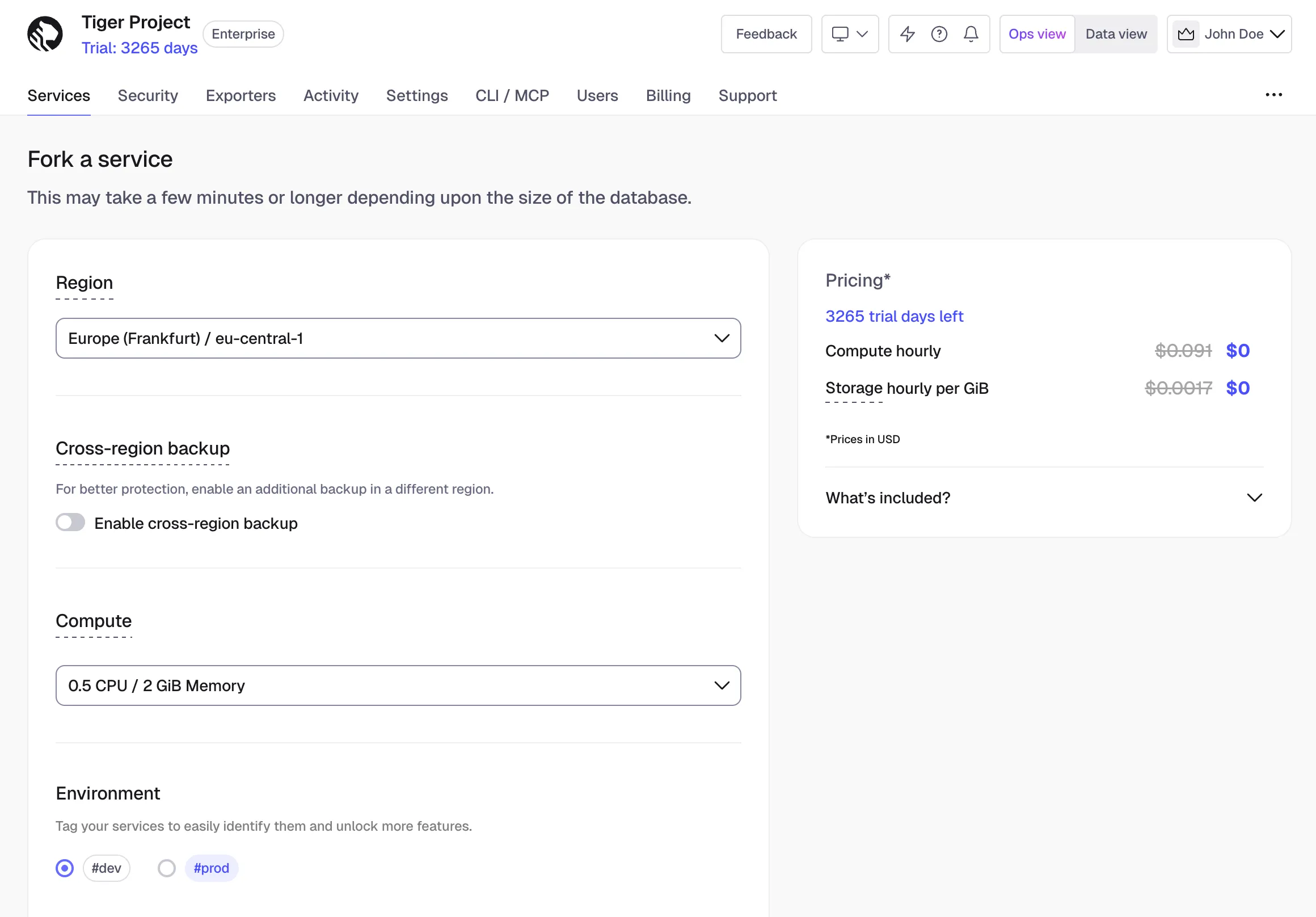
- Configure the fork, then click
Fork serviceA fork of the service is created. The forked service shows in
Serviceswith a label specifying which service it has been forked from. - Update the connection strings in your app to use the fork
PITR forks
PITR forks use the timestamp strategy. To recover from a destructive or unwanted action, create a fork at a specific point in time. To avoid paying compute for both the recovery fork and the original service, pause the original.
- Navigate to
Operations>Service managementand clickCreate recovery fork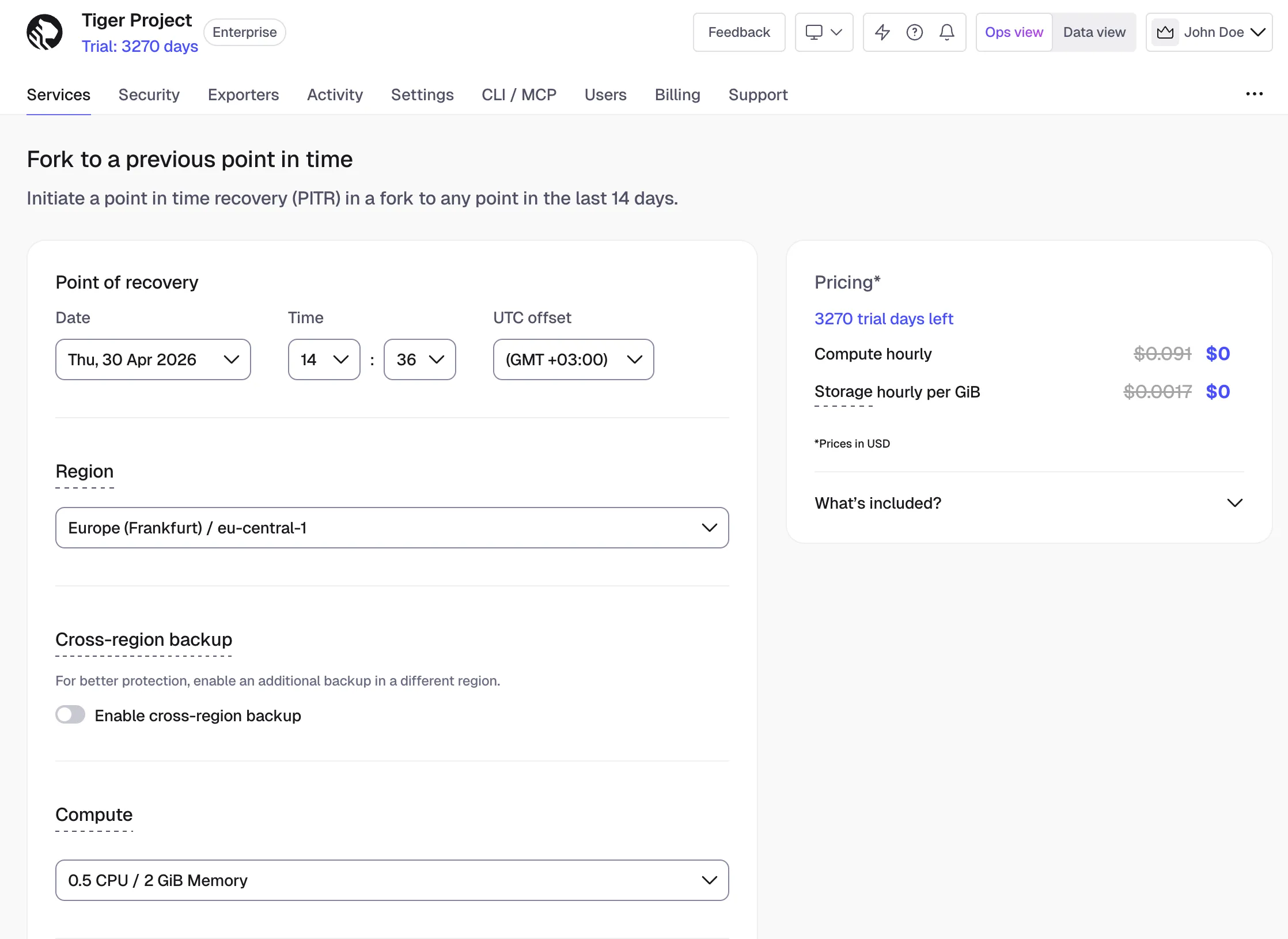
- Select the recovery point, ensuring the correct time zone (UTC offset)
- Select the regionIf you had cross-region backup enabled for your service, select the region in which to create the fork.
- Configure the fork to match the original service
Best practice is to match the same configuration you had at the point you want to recover to. You can also add an HA replica, tag the fork, or add a connection pooler.
- Confirm by clicking
Create recovery fork - Update the connection strings in your app to use the fork
Integrate service forks in your CI/CD pipeline
To fork your Tiger Cloud service using GitHub actions:
- Store your Tiger Cloud API key as a GitHub Actions secret
- In Tiger Console, click
Create credentials. - Save the
Public keyandSecret keylocally, then clickDone. - In your GitHub repository, click
Settings, openSecrets and variables, then clickActions. - Click
New repository secret, then setNametoTIGERDATA_API_KEY. - Set
Secretto your Tiger Cloud API key in the following format<Public key>:<Secret key>, then clickAdd secret.
- In Tiger Console, click
- Add the GitHub Actions Marketplace to your workflow YAML files
For example, the following workflow forks a service when a pull request is opened, running tests against the fork, then automatically cleans up.
name: Test on a service forkon: pull_requestjobs:test:runs-on: ubuntu-lateststeps:- uses: actions/checkout@v4- name: Fork Databaseid: forkuses: timescale/fork-service@v1with:project_id: ${{ secrets.TIGERDATA_PROJECT_ID }}service_id: ${{ secrets.TIGERDATA_SERVICE_ID }}api_key: ${{ secrets.TIGERDATA_API_KEY }}fork_strategy: last-snapshotcleanup: truename: pr-${{ github.event.pull_request.number }}- name: Run Integration Testsenv:DATABASE_URL: postgresql://tsdbadmin:${{ steps.fork.outputs.initial_password }}@${{ steps.fork.outputs.host }}:${{ steps.fork.outputs.port }}/tsdb?sslmode=requirerun: |npm installnpm test- name: Run Migrationsenv:DATABASE_URL: postgresql://tsdbadmin:${{ steps.fork.outputs.initial_password }}@${{ steps.fork.outputs.host }}:${{ steps.fork.outputs.port }}/tsdb?sslmode=requirerun: npm run migrateFor the full list of inputs, outputs, and configuration options, see the Tiger Data - Fork Service in GitHub marketplace.