

Private endpoints
Connect your services to AWS PrivateLink endpoints to eliminate public internet exposure
With Tiger Cloud, you can connect your services to AWS PrivateLink endpoints. A private endpoint in your VPC routes traffic to your service over the AWS backbone, without crossing the public internet or requiring VPC peering. This page describes how to authorize your AWS account in Tiger Console, create a private endpoint on the AWS side, and attach a service to it.
Prerequisites
Section titled “Prerequisites”To follow the steps on this page:
- Create a target Tiger Cloud service with the Real-time analytics capability.
- Create an AWS account with a VPC and a subnet for the resources you will connect to Tiger Cloud.
- Configure IAM permissions to create VPC endpoints.
Set up a private endpoint connection
Section titled “Set up a private endpoint connection”Private endpoint connections in Tiger Cloud are currently in private preview. To request access in Tiger Console, go to Security > Private Endpoints and click Request access. Then refresh the page and follow the steps below.
Take the following steps to connect your Tiger Cloud service to a PrivateLink endpoint.
- Create an AWS account authorization
-
In Tiger Console, select
Security>Private Endpoints>Configure Private Endpoint Connection.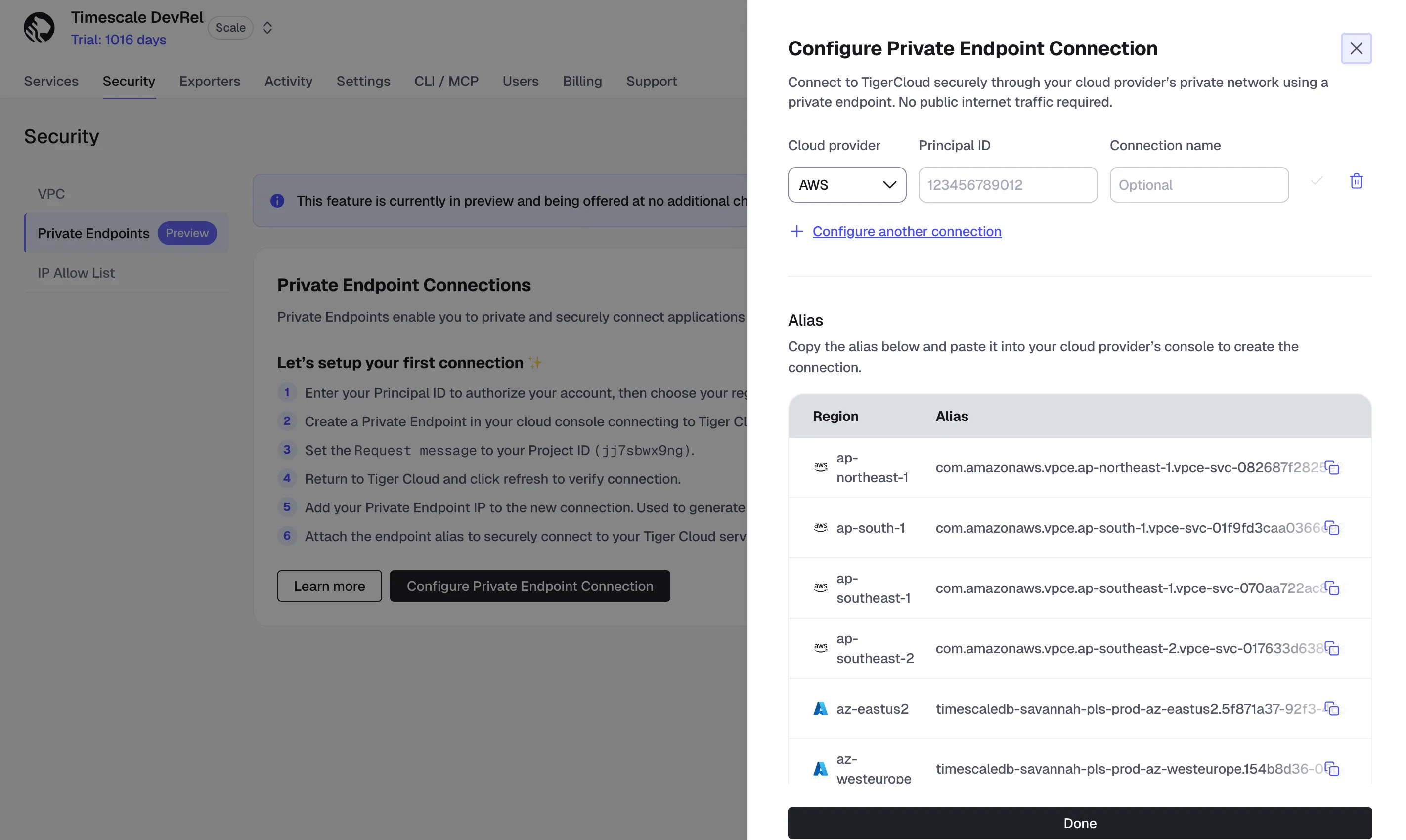
-
In
Cloud provider, selectAWS. -
In
Principal ID, enter your AWS account ID. Give your authorization a name, for convenience.WarningClick the checkmark next to
Connection nameto save your authorization. Otherwise, your input is discarded. -
Under
Alias, copy the alias for the region in which you need to create the connection. Choose the region of your AWS resources. -
Click
Done. Tiger Cloud confirms your authorization. Once it is confirmed, you can connect multiple endpoints from the same authorized account.
-
- Create a VPC endpoint in AWS
-
In AWS Console, go to
VPC>Endpoints>Create endpoint. -
Optionally provide a name tag for your endpoint.
-
Under
Type, selectPrivateLink Ready partner services.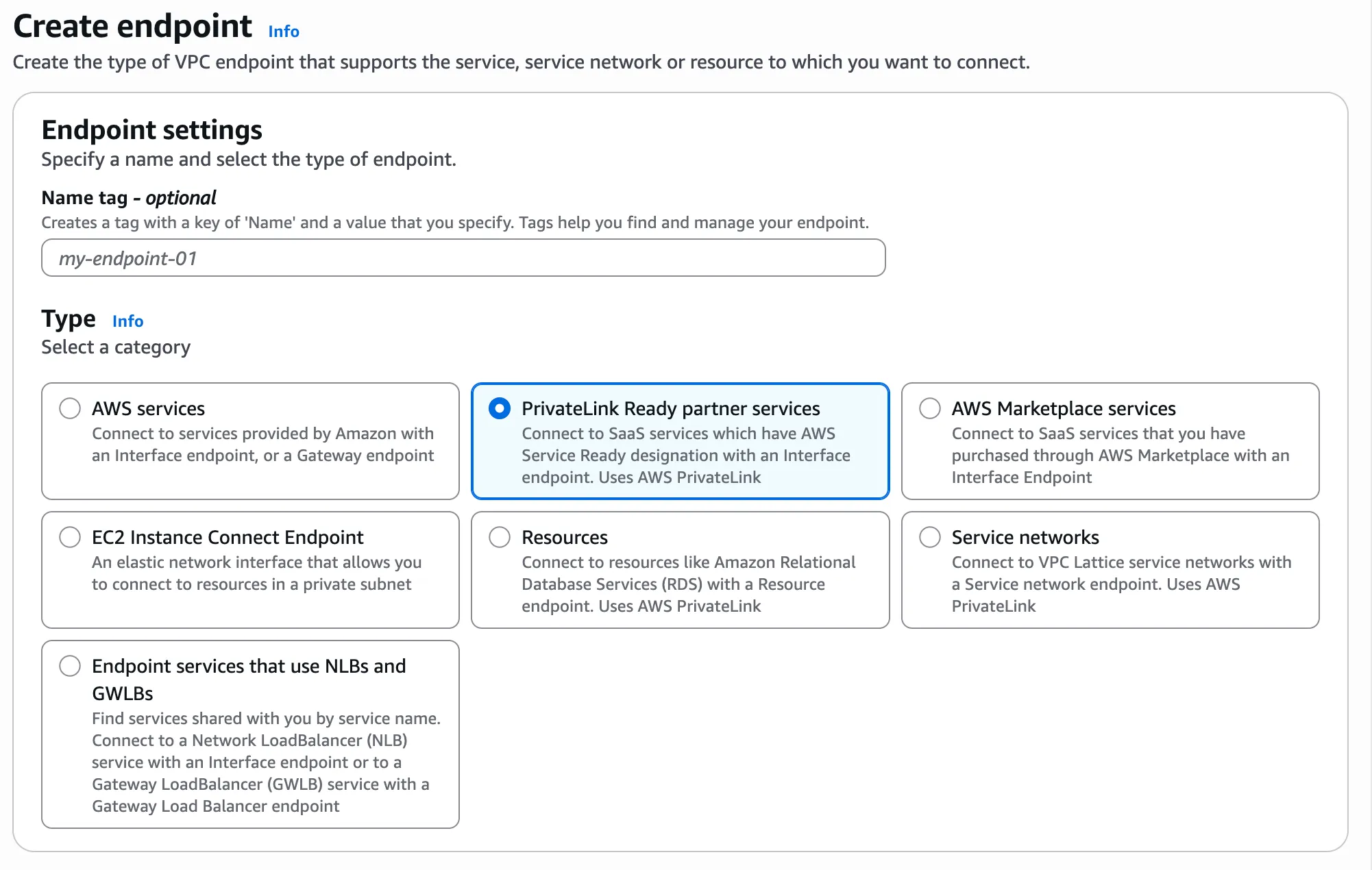
-
Under
Service settings>Service name, paste in the alias your copied in Tiger Console and clickVerify service. Wait for theService name verified.success message.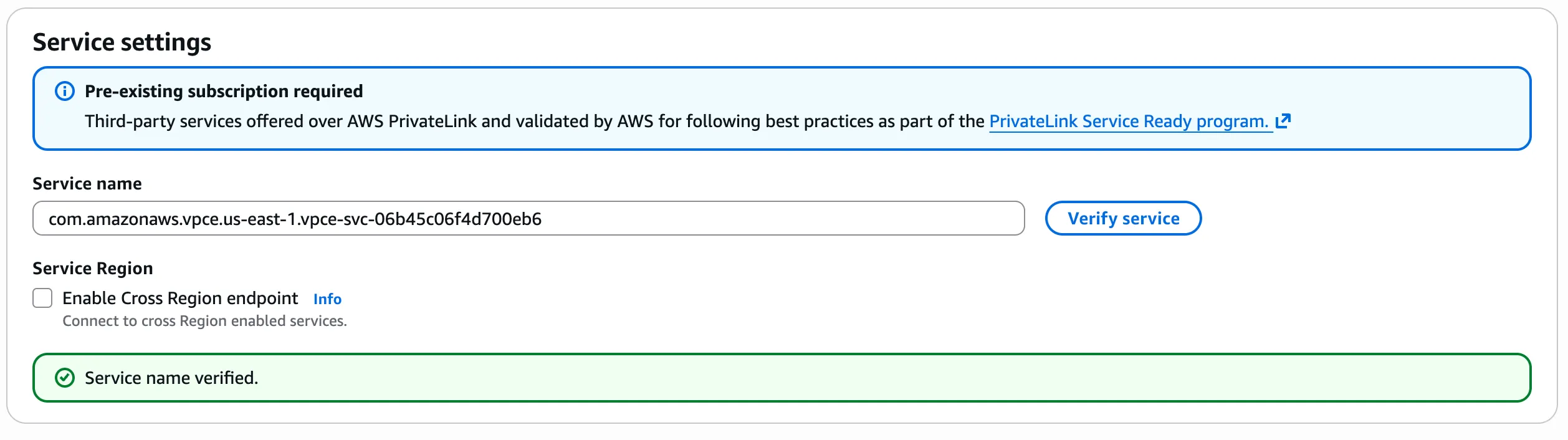
-
Select the VPC that contains the resources you want to connect to Tiger Cloud, then choose one or more Availability Zones and subnets where the endpoint’s private IPs will be created. For lowest latency and no cross-AZ data transfer charges, match the Availability Zones of your workloads; select multiple AZs for high availability.
-
Optionally configure the security groups and tags, then click
Create endpoint. -
Go to
EC2>Network interfacesand copy the primary private IPv4 address of your endpoint.
-
- Sync the connection
-
In Tiger Console >
Security>Private Endpoints, clickRefresh. Tiger Cloud automatically approves connections from authorized accounts. Your connection appears in the list.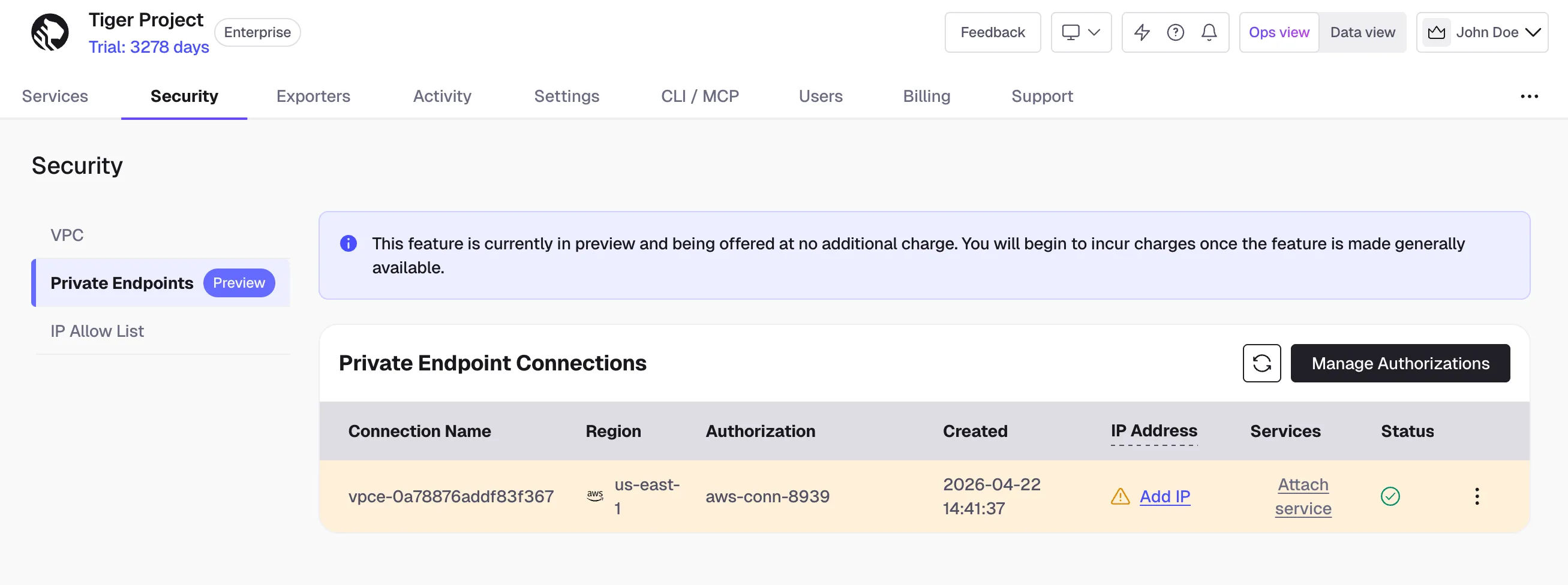
-
Under
IP AddressclickAdd IPand paste the private endpoint IP address you have copied from AWS. -
Under
ServicesclickAttach service. Select your service from the dropdown and clickAttach. You can attach a service to one private endpoint. -
From an EC2 instance inside your VPC, connect to your service using a connection string with your connection details. You should be able to connect successfully.
-
Manage connections
Section titled “Manage connections”- To detach a service from a private endpoint connection, go to
Security>Private Endpoints, expand the arrow in theServicescolumn, and click the trash icon next to the service connection string. - To edit or remove an endpoint connection, go to
Security>Private Endpointsand click the three dots next to the connection in the list. SelectEditorDisconnect, respectively. You need to detach all services from a private endpoint connection before deleting it. - To remove an authorization, click
Manage Authorizations> trash bin icon. You need to disconnect all relevant endpoint connections before removing an authorization.